Key points
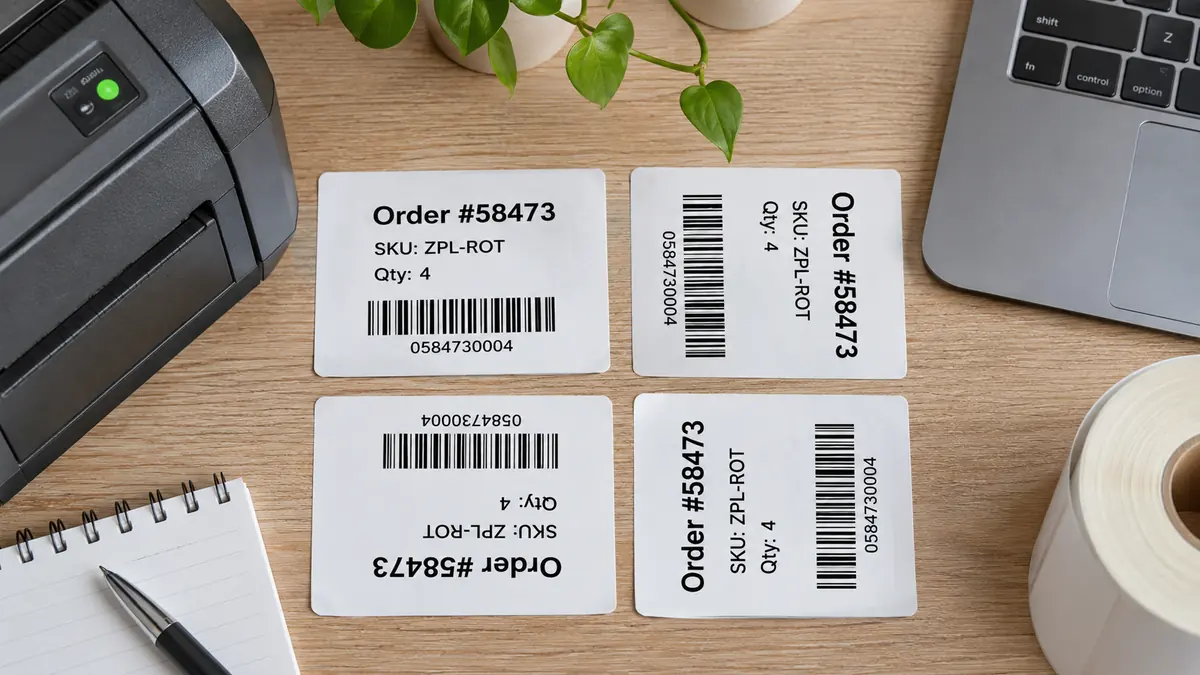
- N, R, I and B rotate a field by 0, 90, 180 and 270 degrees clockwise.
- The orientation goes in ^A for text and in the first parameter of barcode commands.
- ^FW sets a default orientation for every following field.
- ^PO and ^PM rotate or mirror the whole printed label.
Labels are not always read the way they are printed. A narrow label on a shelf edge, a barcode along a tall box or a landscape layout on 4 x 6 stock all need rotated fields. ZPL handles rotation with four letters and two label level commands.
The four orientations
| Letter | Meaning | Rotation |
|---|---|---|
| N | Normal | 0 degrees |
| R | Rotated | 90 degrees clockwise |
| I | Inverted | 180 degrees |
| B | Read from bottom up | 270 degrees clockwise |
For text, the letter follows the font: ^A0R,40,40. For barcodes it is the first parameter: ^BCR,100,Y,N,N. QR codes always use N, because a QR code reads in any direction.
^XA
^PW812
^LL812
^FO20,20^GB772,772,4^FS
^FO60,60^A0N,40,40^FDN: normal^FS
^FO720,60^A0R,40,40^FDR: rotated 90^FS
^FO60,740^A0I,40,40^FDI: inverted 180^FS
^FO40,600^A0B,40,40^FDB: bottom up^FS
^BY2,3,100
^FO200,200^BCN,100,Y,N,N^FDNORMAL^FS
^FO560,200^BCR,100,Y,N,N^FDROTATED^FS
^XZ
Where does a rotated field start?
With ^FO, the coordinates mark the top left corner of the area the field occupies after rotation. A field rotated with R therefore extends down and to the left of its text direction, which is why, in the example, the R text sits at x 720 near the right edge. With ^FT, the coordinates mark the text baseline origin, which rotates with the field. Mixing the two in one label is a common cause of misaligned rotated text, so pick one style per label. The ZPL Viewer shows the bounding box of each element when you hover it, which makes rotated positions easy to check.
Setting a default with ^FW
^FWr sets the orientation for every following field that does not specify its own. It is ideal for labels printed sideways: put ^FWR at the top and design the whole label rotated, instead of adding R to every command. Newer firmware also accepts a second parameter for default justification.
Rotating or mirroring the whole label
^POIprints the entire label upside down, which helps when a printer is mounted so that labels come out inverted relative to the reader.^PONrestores normal orientation.^PMYmirrors the label left to right, used for printing on the back of transparent media.^PMNturns it off.
Both can be stored in printer settings, which explains labels that suddenly print upside down after another application has used the printer. Set them explicitly when it matters.
Designing a landscape label
A 4 x 6 label fed short edge first is portrait to the printer. To lay out text along the long edge:
- Add
^FWRor use R on each field. - Remember that x now runs along the reader's vertical axis. Place the first line near the right edge and subsequent lines further left.
- Preview with the viewer's Rotate view set to 270 degrees to read the label naturally while you work. The rotation only affects the preview and exports, not your code.
Rotated barcodes and print quality
Thermal printers print bars most crisply when they run in the direction the label travels. A Code 128 with orientation N on a standard label feed meets that rule. Rotated linear barcodes (R or B) are printed as "ladder" barcodes, with bars across the direction of travel, and may need a larger module width or slower speed to scan reliably. See the barcode guide for sizing advice.
Preview this in the ZPL Viewer
Paste your code, pick the label size and density, then check every field before you print.
Frequently asked questions
How do I rotate text 90 degrees in ZPL?
Use R in the font command, for example ^FO700,50^A0R,40,40^FDText^FS. Use B for 270 degrees.
How do I print the whole label upside down?
Add ^POI after ^XA. Use ^PON to return to normal orientation.
Can I rotate a QR code in ZPL?
No. ^BQ only supports orientation N. QR codes can be read in any orientation, so rotation is not needed.
Why does my rotated text appear in the wrong place?
With ^FO the origin is the top left of the rotated field area, not the start of the text. Hover the element in the viewer to see its box, then adjust x and y.
Sources and further reading

Written by the ZPL Viewer Editorial Team
We build and maintain the ZPL Viewer rendering engine and write these guides from real testing of label code. Every example in this article was rendered in our viewer before publishing. Read more about how we work.