Key points
- Windows has no built in ZPL previewer, but any browser can run an online ZPL viewer.
- ZPL files are plain text: Notepad opens them, and .prn files from Zebra drivers usually contain ZPL.
- To print raw ZPL, use Zebra Setup Utilities, a shared printer with copy /b, or port 9100 on a network printer.
- Never print a .zpl file through a normal document driver, or you get the code as text instead of a label.
Double click a .zpl file on Windows and you usually get a "How do you want to open this file?" prompt. That is because ZPL is plain text meant for a printer, not a document format Windows understands. The good news: you do not need special software to see what the label looks like, and printing it correctly takes only a few minutes to set up.
Opening a ZPL file on Windows
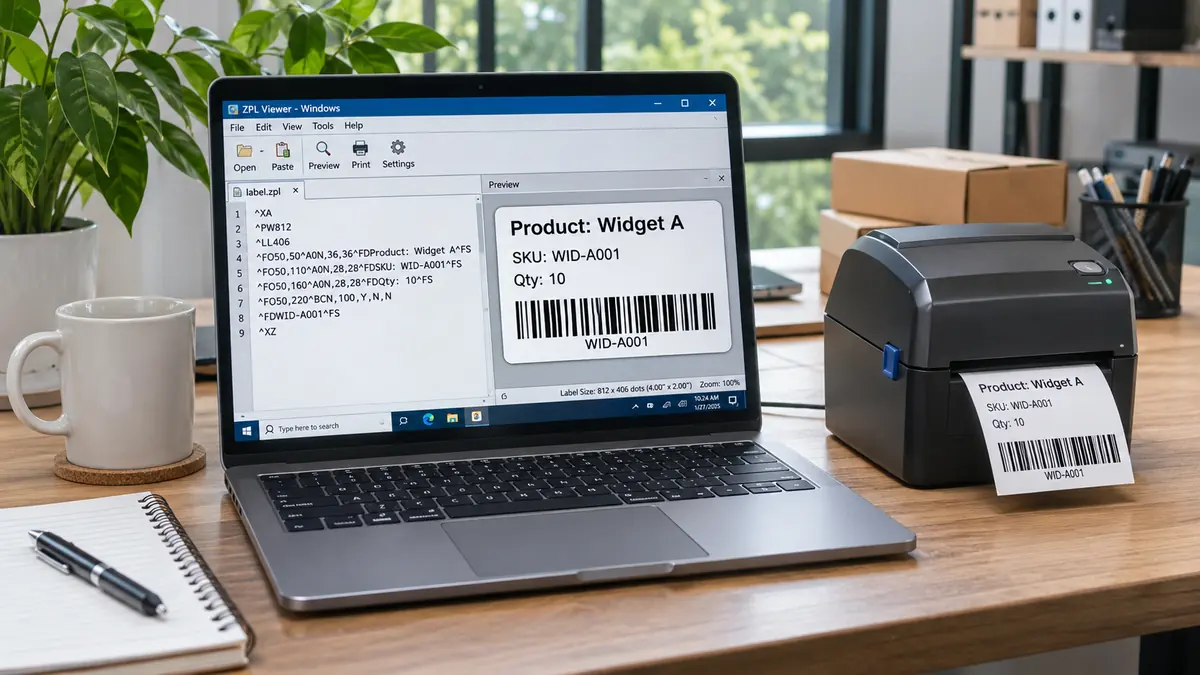
Because ZPL is text, Notepad, Notepad++ or Visual Studio Code can open it. That is useful for a quick look at the data, but you only see code. To see the label, use a viewer:
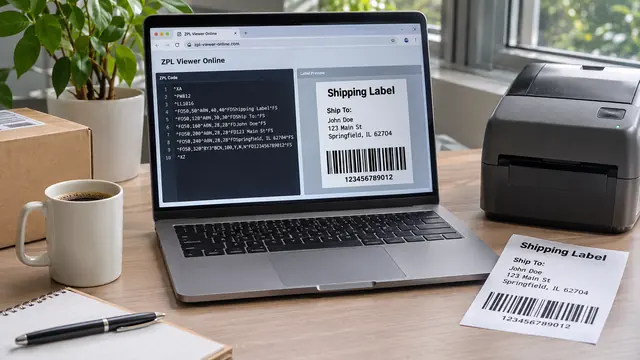
- Open our ZPL Viewer in Edge, Chrome or Firefox.
- Drag the .zpl or .prn file from File Explorer onto the editor, or click Open file.
- Choose the density of your printer (8 dpmm for 203 dpi) and the label size.
The label renders immediately. If you work with ZPL every day, pin the viewer tab or install it as an app from the browser menu so it opens like a desktop program.
What about .prn files?
When an application prints to a Zebra printer with "Print to file" enabled, Windows saves the raw printer data as a .prn file. With a Zebra driver this is ZPL, often with setup commands such as ~SD (darkness) or ^MN (media tracking) at the top. The viewer lists those as printer settings and renders the label as normal.
Make .zpl files open in Notepad by default
If you want double click to at least show the code, right click a .zpl file, choose Open with, pick Notepad and tick "Always use this app". Windows 11 calls this option "Always". You can then copy the code into the viewer whenever you need a preview.
Printing ZPL from Windows the right way
The most common mistake is opening a .zpl file in Notepad and pressing Print. The Zebra driver then renders Notepad's page, so you get a label covered in carets and commands. ZPL must reach the printer as raw data. You have three reliable options:
Option 1: Zebra Setup Utilities
Zebra's free utility includes a way to open communication with a printer and send a file or typed commands directly. It is the friendliest choice for occasional printing and testing.
Option 2: Share the printer and use copy /b
Share the Zebra printer in Windows printer properties (for example as ZebraShare), then run this in Command Prompt from the folder that contains your file:
copy /b label.zpl \\localhost\ZebraShareThe /b switch copies the file as binary so nothing is changed on the way. This works with the Zebra driver and with the Generic / Text Only driver, and it is easy to script for batch jobs.
Option 3: Network printers on port 9100
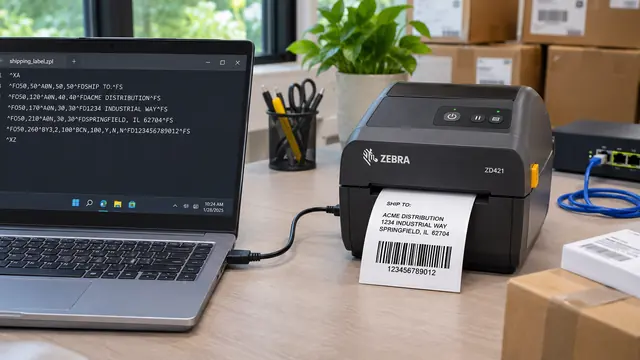
Most networked Zebra printers accept raw data on TCP port 9100. Tools that support raw TCP printing, or a short PowerShell script, can send the file straight to the printer's IP address. Our guide to sending ZPL to a Zebra printer includes examples.
^XA
^PW812
^LL406
^CF0,36
^FO40,40^FDPrinted from Windows^FS
^CF0,26
^FO40,95^FDcopy /b label.zpl \\localhost\ZebraShare^FS
^FO40,140^GB730,3,3^FS
^BY3,3,130
^FO40,170^BCN,130,Y,N,N^FDWIN-ZPL-2026^FS
^XZ
Which driver should the printer use?
For printing from normal Windows applications, install Zebra's driver for your model. For raw ZPL, the driver matters less because the data passes through untouched. Some teams create a second printer queue on the same port with the Generic / Text Only driver, used only for raw jobs, so normal documents and raw ZPL never get mixed up.
Common Windows problems
- The label prints the code as text. The file went through a document driver. Use one of the raw methods above.
- Nothing prints and the queue clears. Check the share name and that the printer is online. Try a tiny file such as
^XA^FO50,50^A0N,50,50^FDTest^FS^XZ. - Labels print but are shifted. Compare the preview at the printer's true density, then see ZPL troubleshooting for calibration and label home issues.
Preview this in the ZPL Viewer
Paste your code, pick the label size and density, then check every field before you print.
Frequently asked questions
Does Windows 11 have a built in ZPL viewer?
No. Windows can open ZPL as plain text, but it cannot draw the label. Use a browser based viewer or a dedicated tool to see the rendered result.
How do I open a .prn file?
Open it in a text editor to check whether it contains ZPL (look for ^XA). If it does, drop it into a ZPL viewer to see the label. If it contains PCL or other binary data, it was printed with a different driver.
Why does my Zebra printer print the ZPL code itself?
The file was printed as a document, so the driver turned the text into an image. Send the file as raw data with Zebra Setup Utilities, copy /b to a shared printer or port 9100.
Can I preview ZPL without admin rights?
Yes. A browser based viewer needs no installation, so it works on locked down work computers.
Sources and further reading

Written by the ZPL Viewer Editorial Team
We build and maintain the ZPL Viewer rendering engine and write these guides from real testing of label code. Every example in this article was rendered in our viewer before publishing. Read more about how we work.