Key points
- Start by previewing the code: if the preview is wrong, the problem is in the ZPL; if it is right, look at the printer.
- Wrong size almost always means a resolution mismatch between the code and the printer.
- Shifts, skipped labels and blank prints usually come from calibration, label home or media settings.
- Barcode failures are fixed with module width, darkness, speed and quiet zones.
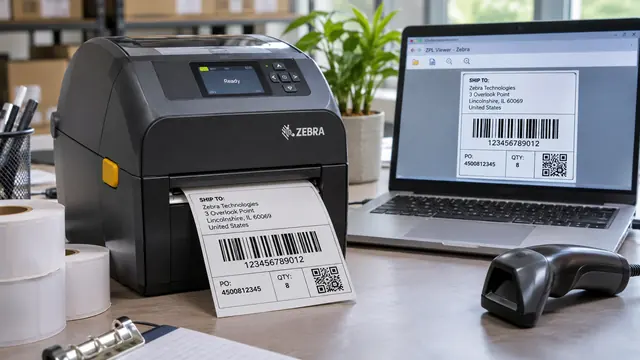
When a label prints wrong, the fastest question to ask is: is the problem in the code or in the printer? Paste the ZPL into our ZPL Viewer at the printer's density and label size. If the preview shows the same fault, fix the code. If the preview is correct, the printer, driver or media is to blame. Then work through the list below.
1. The printer prints the ZPL code as text
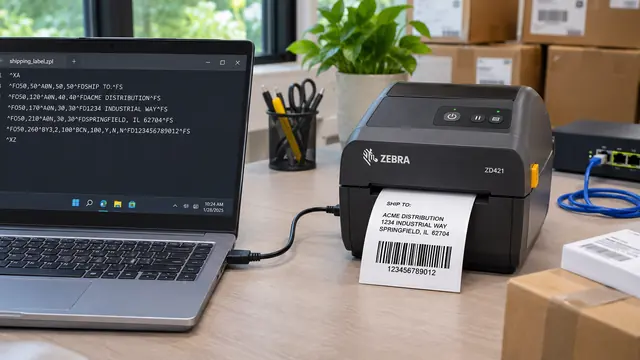
The file was sent through a document driver, for example by opening it in Notepad and pressing Print, or the printer is set to a different command language. Send the file as raw data (see sending ZPL to a printer) and check the printer's language setting is ZPL.
2. Nothing prints, or labels come out blank
- Check that the code has
^XAand^XZ. The viewer warns when^XZis missing. - A thermal transfer setting with direct thermal media and no ribbon (or the reverse) gives blank labels.
^MTDselects direct thermal and^MTTthermal transfer. - Fields placed outside the print width do not print. Hover elements in the preview to check coordinates.
3. The label is too big or cut off
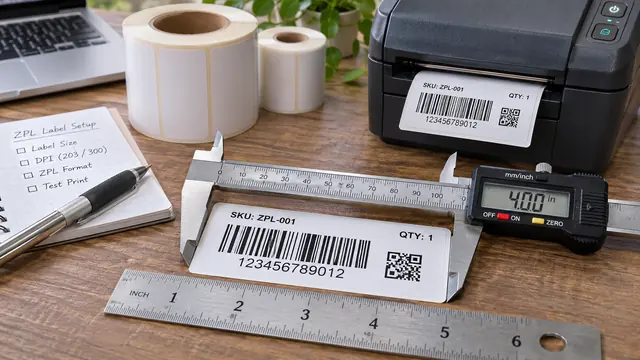
Almost always a resolution mismatch: code written for 300 dpi sent to a 203 dpi printer prints about one and a half times larger. Preview at both 8 and 12 dpmm to see which one fits, then regenerate the code for the right printer. Our DPI guide explains the maths.
4. The label is too small and stuck in a corner
The reverse case: 203 dpi code on a 300 or 600 dpi printer. Same fix.
5. Everything is shifted
If the whole image moves by the same amount, look at label home (^LH), label top (^LT) and label shift (^LS), both in your file and stored in the printer. Recalibrating media often fixes vertical drift; many printers calibrate with a button sequence or the ~JC command.
6. Labels skip, or one label prints across two
The printer is misreading the gap or black mark between labels. Check media tracking (^MNY for gap media, ^MNM for black mark, ^MNN for continuous) and calibrate. On continuous media, set the label length with ^LL.
7. Print is faint or patchy
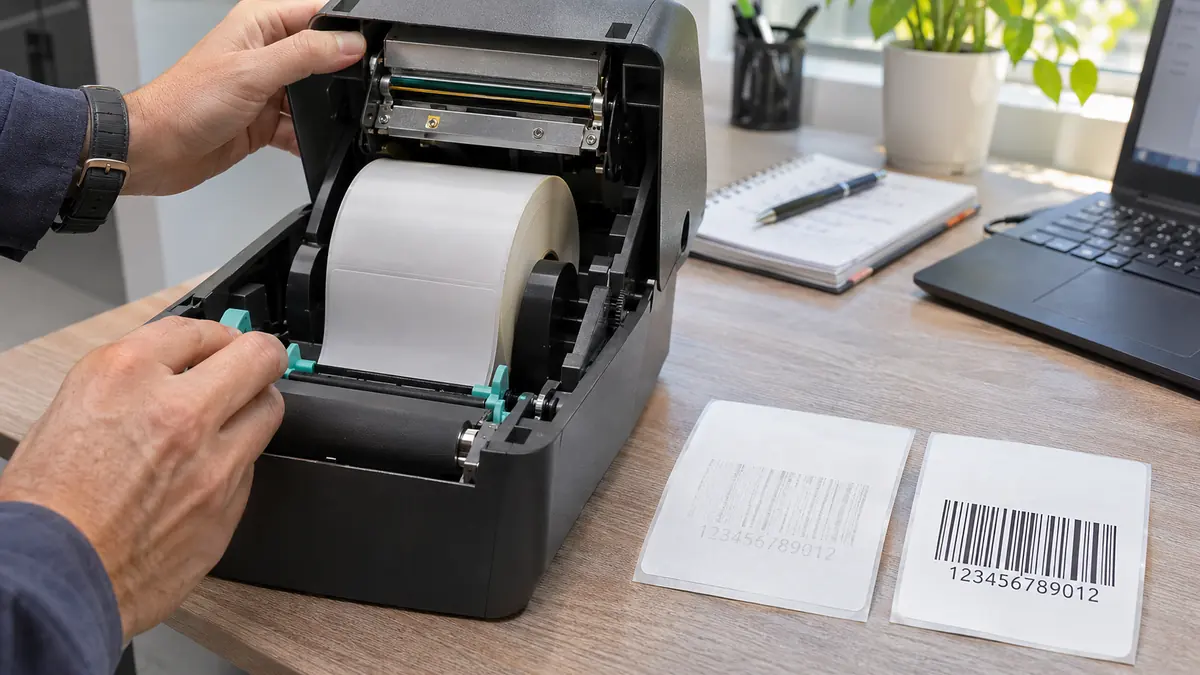
Increase darkness (~SD or ^MD) a little at a time, or reduce print speed (^PR). Patchy vertical lines that appear on every label point to a dirty or worn printhead; clean it with the recommended cleaning pen or wipes.
8. The barcode will not scan
- Scan the preview first. If it fails on screen, the data or symbology is wrong.
- If the preview scans but the print does not, increase module width (
^BY), adjust darkness, slow down, and keep quiet zones clear. - Bars parallel to the direction of label travel print most crisply on thermal printers.
More detail in the ZPL barcode guide.
9. Odd or missing characters
Accented letters, currency symbols and non Latin scripts need the right encoding (^CI28 for UTF-8) and a font that contains the glyphs. A caret in data ends the field early unless escaped with ^FH. See special characters in ZPL.
10. Fields are missing or merged
A missing ^FS merges two fields; a typo such as ^F0 (zero) is ignored entirely. The inspector lists unknown commands, and the colours in the editor show data running into the next command.
11. Graphics look sheared, striped or inverted
A wrong bytes per row value in ^GF shears the image; inverted bits print a negative. Our guide to images in ZPL covers the format.
12. The label prints upside down or mirrored
^POI inverts the label and ^PMY mirrors it. These may be stored in the printer from a previous job; set ^PON and ^PMN explicitly to be sure. Copy count problems usually come from ^PQ.
^XA
^PW812
^LL609
^FO20,20^GB772,569,4,B,1^FS
^FO50,50^A0N,44,44^FDTest label: 203 dpi^FS
^FO50,110^GB203,203,4^FS
^FO70,180^A0N,26,26^FD1 inch^FS
^FO300,110^A0N,28,28^FDBox above = 1 x 1 in^FS
^FO300,150^A0N,28,28^FDIf not, check density^FS
^BY3,3,140
^FO50,360^BCN,140,Y,N,N^FDTEST-0001^FS
^FO600,360^BQN,2,5^FDMA,TEST-0001^FS
^XZ
Print this label and measure the square. One inch means the resolution is right. Scan both codes. If anything is off, you now know which section above to read.
Preview this in the ZPL Viewer
Paste your code, pick the label size and density, then check every field before you print.
Frequently asked questions
Why does my Zebra printer print one label and then skip one?
The media sensor is misreading the gaps. Calibrate the printer, confirm the media tracking setting matches your labels and check that the label length is correct.
Why does the label print fine in the viewer but not on the printer?
The code is correct, so check printer settings: resolution, stored label home or print width, darkness, media type and calibration.
How do I reset a Zebra printer to factory defaults?
Most models support a button sequence or the ^JUF command to restore factory settings. Note your network and media settings first, because they will be reset too.
Why do labels print slowly?
Large graphics, high darkness and low speed settings all slow printing. Store logos with ~DG and recall them with ^XG to reduce data per label.
Sources and further reading

Written by the ZPL Viewer Editorial Team
We build and maintain the ZPL Viewer rendering engine and write these guides from real testing of label code. Every example in this article was rendered in our viewer before publishing. Read more about how we work.