Key points
- Format commands start with a caret (^); control commands that act immediately start with a tilde (~).
- A field is usually position, font or barcode, data, then ^FS.
- Settings like ^CF, ^BY, ^LH and ^FW apply to every following field in the label.
- Printer settings such as ^MD and ~SD change print quality, not layout.
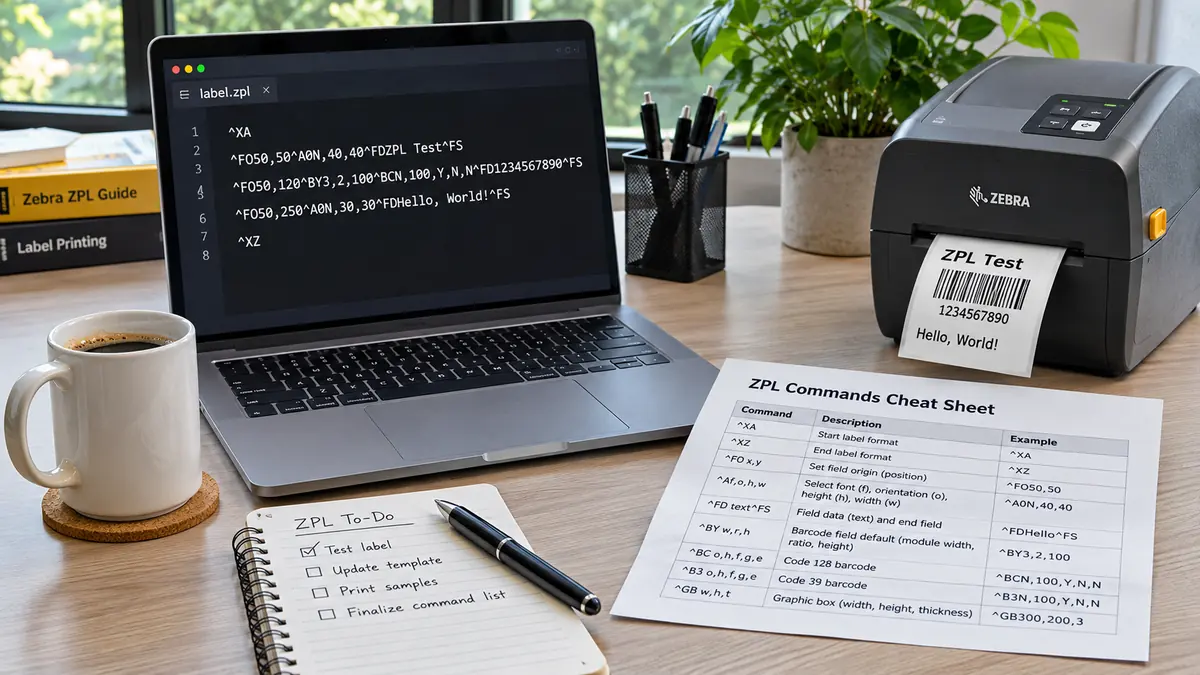
ZPL has well over a hundred commands, but a typical label uses fewer than fifteen. This cheat sheet groups the essentials by job. Every example is valid ZPL; paste any of them into the ZPL Viewer, and its command inspector will explain the rest of your file line by line.
Format structure
| Command | Purpose | Example |
|---|---|---|
^XA | Start a label format | ^XA |
^XZ | End the format and print | ^XZ |
^FS | End a field | ^FDText^FS |
^FX | Comment | ^FX Address block |
^PQ | Print quantity | ^PQ3 prints three copies |
Positioning
| Command | Purpose | Example |
|---|---|---|
^FOx,y | Field origin: top left corner of the field | ^FO50,100 |
^FTx,y | Field typeset: text baseline or barcode bottom | ^FT50,140 |
^LHx,y | Label home: offset for all following fields | ^LH20,10 |
^LSx | Label shift left or right | ^LS-10 |
^FWr | Default field rotation: N, R, I or B | ^FWR |
Text
| Command | Purpose | Example |
|---|---|---|
^Afo,h,w | Font f, orientation o, height h, width w | ^A0N,40,36 |
^CFf,h,w | Change default font | ^CF0,30 |
^FDdata | Field data | ^FDHello^FS |
^FBw,l,s,j,h | Field block: width, max lines, spacing, justification, indent | ^FB600,3,0,C |
^FHc | Hex escapes in the next ^FD | ^FH^FDA_5EB^FS prints A^B |
^CI28 | Interpret field data as UTF-8 | ^CI28 |
More in ZPL fonts and text formatting.
Barcodes
| Command | Symbology | Example |
|---|---|---|
^BYw,r,h | Module width, ratio, default height | ^BY3,3,120 |
^BC | Code 128 and GS1-128 | ^BCN,120,Y,N,N^FD12345^FS |
^B3 | Code 39 | ^B3N,N,100,Y,N |
^BE / ^BU | EAN-13 / UPC-A | ^BEN,100,Y,N |
^BQ | QR Code | ^BQN,2,6^FDQA,text^FS |
^BX | Data Matrix | ^BXN,8,200 |
^B7 | PDF417 | ^B7N,8,5,6 |
Details in the ZPL barcode guide and QR codes in ZPL.
Graphics
| Command | Purpose | Example |
|---|---|---|
^GBw,h,t,c,r | Box or line; thickness, colour, rounding | ^GB700,3,3^FS |
^GCd,t,c | Circle | ^GC100,5,B |
^GEw,h,t,c | Ellipse | ^GE200,100,4 |
^GDw,h,t,c,o | Diagonal line, R or L leaning | ^GD200,100,5,B,R |
^GFa,b,c,d,data | Bitmap graphic | ^GFA,8,8,1,FF818181818181FF |
^FR / ^LRY | Reverse one field / the whole label | ^FR^FDWHITE^FS |
^XA
^PW812
^LL609
^LH0,0
^CF0,30
^FO40,40^A0N,46,46^FDZPL cheat sheet demo^FS
^FO40,100^FB730,2,4,L^FDText wraps inside a field block that is 730 dots wide.^FS
^FO40,180^GB730,3,3^FS
^FO40,210^GC90,6,B^FS
^FO160,210^GE160,90,6,B^FS
^FO350,210^GD120,90,6,B,R^FS
^FO520,200^GB250,110,110,B,3^FS
^FO550,230^FR^A0N,50,46^FDFR^FS
^BY2,3,100
^FO40,350^BCN,100,Y,N,N^FDCHEAT-SHEET^FS
^FO560,340^BQN,2,4^FDQA,ZPL^FS
^XZ
Label and printer settings
^PWwprint width and^LLllabel length, both in dots.^POIprints the label upside down;^PMYmirrors it.^MDnand~SDnnset darkness;^PRssets speed.^MNYand^MTTor^MTDset media tracking and thermal transfer or direct thermal.^JUSsaves current settings permanently, so use it deliberately.
How to read an unfamiliar ZPL file
When someone hands you a long file, work through it in this order:
- Find the label boundaries. Count the
^XAand^XZpairs to see how many labels the file prints. - Read the settings at the top.
^PW,^LL,^LH,^CI,^CFand^BYchange how every later field behaves. - Split it into fields. Each
^FOor^FTstarts a field and each^FSends one. The Format button in the ZPL Viewer does this for you. - Ignore printer settings for layout work. Commands such as
~SD,^MD,^PRand^MNaffect print quality and media, not positions. - Check the inspector. Anything marked "Not drawn" or listed in Warnings is where surprises usually hide.
Stored formats and graphics
^XA^DFR:SHELF.ZPL^FS
^FO40,40^A0N,50,50^FN1^FS
^FO40,110^BCN,100,Y,N,N^FN2^FS
^XZ
^XA^XFR:SHELF.ZPL^FS
^FN1^FDAisle 4 Bay 2^FS
^FN2^FDA04B02^FS
^XZ
^DF saves the layout in printer memory with numbered fields; ^XF recalls it and ^FN fills each field. Similarly, ~DG downloads a graphic and ^XG prints it. Our viewer supports both as long as the download happens earlier in the same file.
Preview this in the ZPL Viewer
Paste your code, pick the label size and density, then check every field before you print.
Frequently asked questions
What is the difference between ^ and ~ commands?
Caret commands are format commands that build the label between ^XA and ^XZ. Tilde commands are control commands that the printer acts on immediately, such as ~DG to download a graphic or ~SD to set darkness.
Are ZPL commands case sensitive?
Command letters are generally accepted in upper or lower case, but parameters such as orientation letters and stored file names should be written exactly as documented. Upper case is the convention.
What is the minimum ZPL needed to print text?
Five commands: ^XA^FO50,50^A0N,50,50^FDHello^FS^XZ. That places the word Hello with the scalable font at 50 dots from the top left corner.
Where can I find the full ZPL command reference?
Zebra publishes the ZPL II Programming Guide with every command and parameter. Our viewer’s inspector also explains each command in your file.
Sources and further reading

Written by the ZPL Viewer Editorial Team
We build and maintain the ZPL Viewer rendering engine and write these guides from real testing of label code. Every example in this article was rendered in our viewer before publishing. Read more about how we work.