Any Label Size, Any Printer
Pick a preset such as 4 x 6 in or 100 x 150 mm, or type a custom size, then match 6, 8, 12 or 24 dpmm to your Zebra printer.
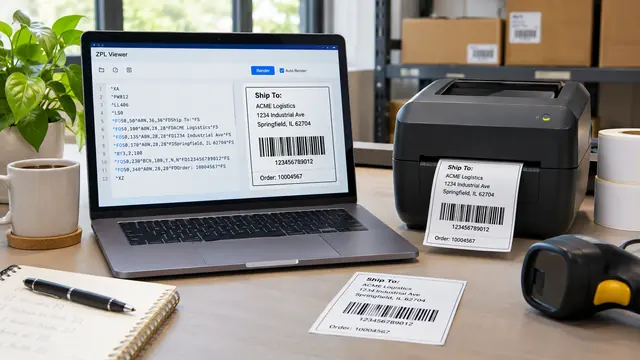
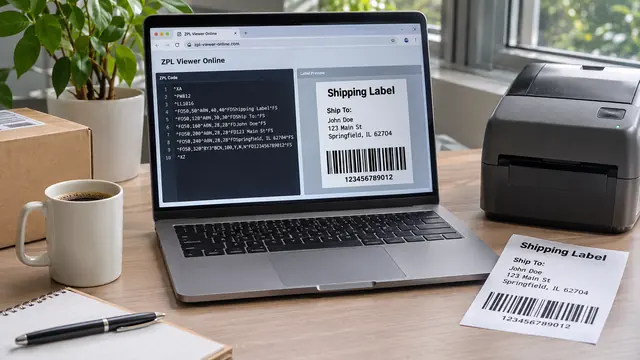
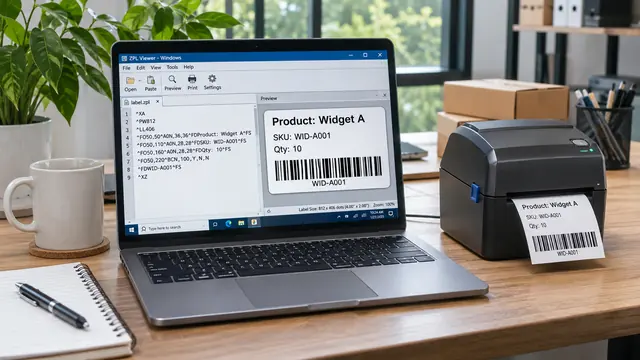
Paste ZPL code or open a .zpl file, and our free ZPL Viewer shows the finished label in seconds. Check every command, barcode and text field, then export PNG or PDF without wasting a single label.
| Line | Command | Meaning | Parameters | Status |
|---|
Everything you need to open, read, fix and export Zebra label code, packed into one fast tool that runs entirely in your browser.
Pick a preset such as 4 x 6 in or 100 x 150 mm, or type a custom size, then match 6, 8, 12 or 24 dpmm to your Zebra printer.
Commands, field data and comments are colour coded with line numbers. Format or minify the code in one click and press Ctrl + Enter to render.
Drop a label file onto the editor or click Open file. Files from shipping platforms, ERPs and Zebra drivers are read locally as plain text.
Every ^XA to ^XZ block becomes its own label. Step through a batch with the arrows and export all of them as one multi page PDF.
Zoom in on tiny text and 2D codes, fit the label to the window, rotate the view in 90° steps or open the preview in full screen.
Copy a link that carries your ZPL, label size and density for a teammate. Your last session is kept in your browser, so work is never lost.
A ZPL Viewer turns Zebra Programming Language, the plain text command set used by Zebra thermal printers, into a picture of the label it will produce. Instead of reading lines such as ^FO50,50^A0N,40,40^FDHello^FS and imagining the result, you see the text, barcodes, lines and logos placed exactly where the printer would put them.
That matters because ZPL positions everything in printer dots. A field that sits at x 600 looks fine on a 4 inch label at 203 dpi, yet falls off the edge of a 2 inch label. A preview catches those problems in the browser, long before a roll of labels, a ribbon and a courier pickup are on the line.
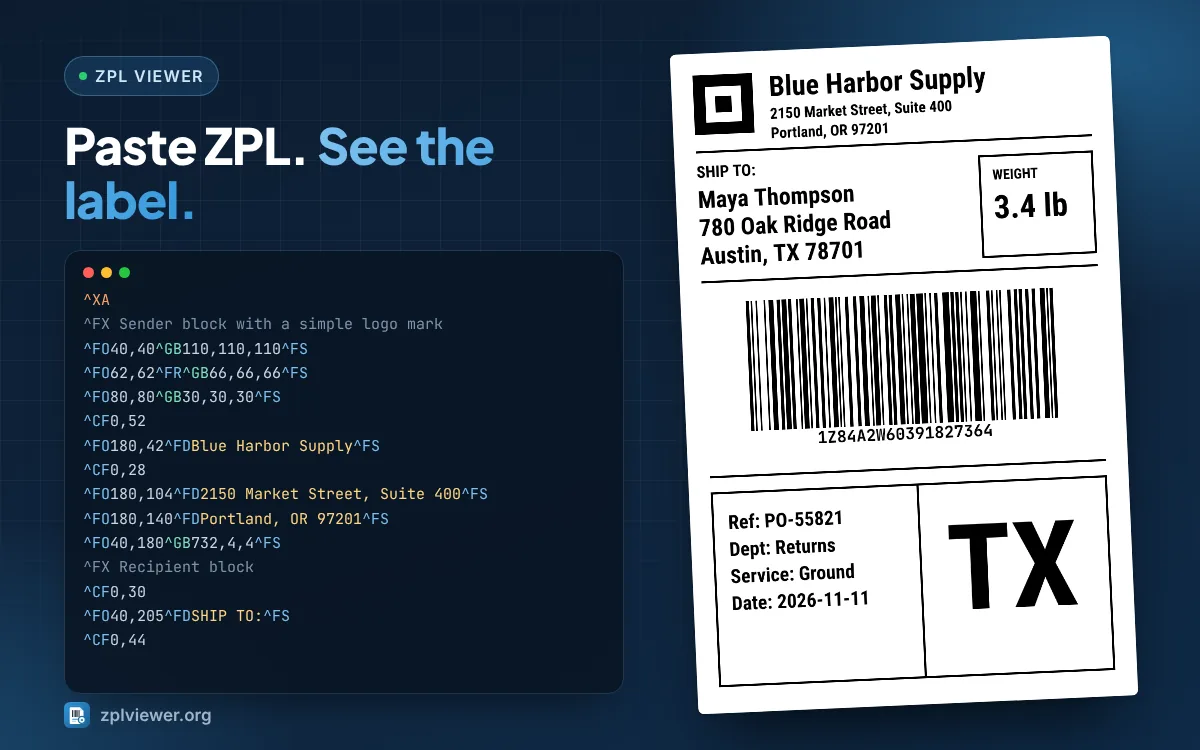
From raw code to a checked label in under a minute. Nothing to install and nothing to configure on your printer.
Paste code into the editor, drop a .zpl, .prn or .txt file onto it, or load one of the eight sample labels to explore.
Choose a preset such as 4 x 6 in or type your own size, then match the dpmm value to your printer: 8 dpmm for 203 dpi models.
The label renders as you type. Hover any element to see its coordinates and click it to jump straight to the code that drew it.
Save the current label as PNG, every label as a PDF, the edited code as a ZPL file, or copy a share link for a colleague.
The tool was designed for the people who live with labels every day: developers wiring up carrier APIs, warehouse leads checking templates and support teams answering "why did this print wrong?"
Rendering runs in your browser, so customer names, addresses and order numbers inside the label never leave your machine.
The label redraws a moment after you stop typing. Large files with embedded graphics still render in a fraction of a second on a normal laptop.
Code 128, GS1-128, Code 39, EAN, UPC, QR Code and Data Matrix are encoded properly, so you can test them with a phone scanner.
Every command is listed with its line number, meaning and status. Unknown or unsupported commands are flagged instead of silently ignored.
Click a barcode or text block in the preview and the editor selects the exact ^FO to ^FS group behind it. Debugging a 300 line file gets much faster.
Exports are produced at true printer resolution. PDFs use one page per label at the real label size, ready to archive or send as a proof.
Whatever system writes your ZPL, the viewer shows you the result. These are the label types our visitors check most often.
4 x 6 carrier labels with tracking barcodes, routing codes and address blocks. Verify them before a pickup with our 4 x 6 shipping label walkthrough.
Price tags and shelf labels with EAN-13 or UPC-A codes. The viewer computes check digits the way a printer does, which our ZPL barcode guide explains.
Equipment and inventory tags that link to a web page. Learn the ^BQ syntax in how to create a QR code in ZPL.
SSCC and logistics labels that combine application identifiers. Mode D in ^BC adds the FNC1 characters scanners expect.
Tiny Data Matrix labels for electronics and healthcare, often printed at 300 or 600 dpi. Switch the density to see how small details hold up.
Bitmaps stored in ^GF or downloaded with ~DG, including compressed Z64 data. See adding images and logos to ZPL.
Each example is a complete, working label. Open it in the viewer above, change a value and watch the preview update.
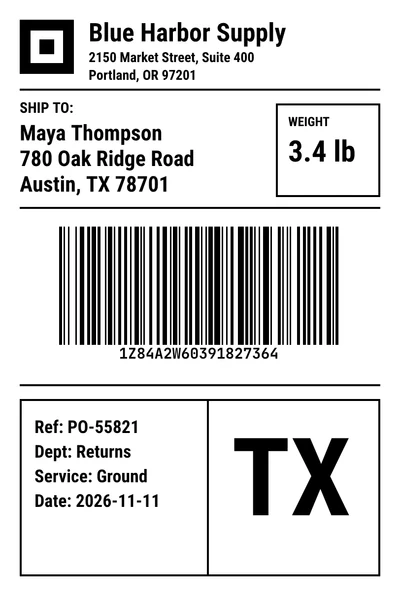
Sender and recipient blocks, a weight box, routing area and a tracking barcode.
Open example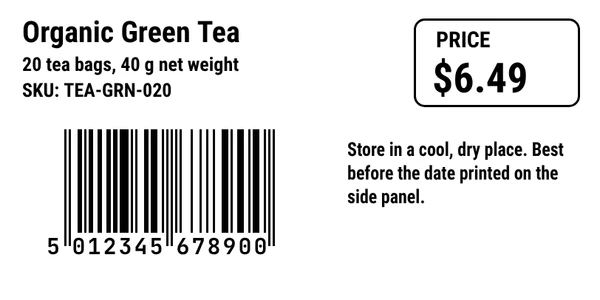
A 4 x 2 inch tag with a price box, wrapped description text and an EAN-13 code.
Open example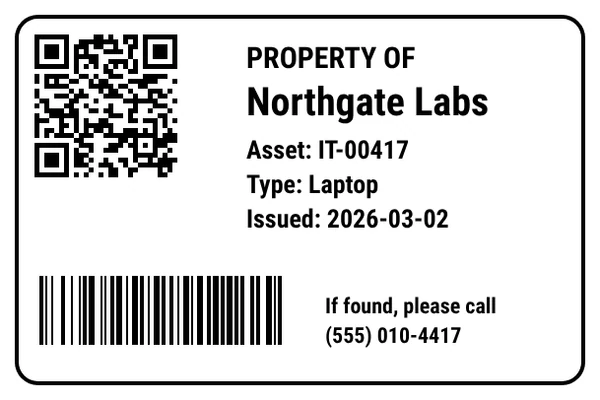
A 3 x 2 inch property tag that links to a URL and repeats the ID as Code 128.
Open example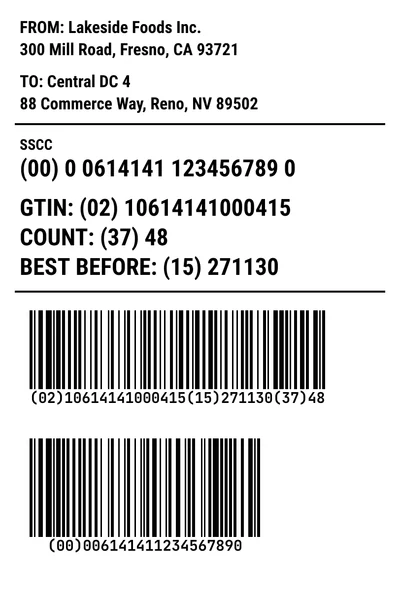
An SSCC logistics label with application identifiers in human readable form.
Open exampleEvery ZPL label starts with ^XA and ends with ^XZ. In between, each printed item is a field. A field usually opens with a position command, sets a font or barcode type, supplies data with ^FD and closes with ^FS.
Positions are measured in dots from the top left corner. On a 203 dpi printer, 8 dots equal one millimetre and 203 dots equal one inch, so ^FO50,100 places a field about 6 mm from the left edge and 12.5 mm from the top.
Commands starting with a caret (^) describe the label format. Commands starting with a tilde (~) are control commands that act immediately, such as downloading a graphic. Our ZPL commands cheat sheet lists the ones you will use most.
^XA
^FX Field 1: text using scalable font 0
^FO40,40^A0N,48,48^FDHello from ZPL Viewer^FS
^FX Field 2: a 3 dot line under the text
^FO40,100^GB720,3,3^FS
^FX Field 3: a Code 128 barcode
^BY3,3,120
^FO40,130^BCN,120,Y,N,N^FDZPL-0001^FS
^XZA quick map of the commands that shape most labels. The inspector inside the tool explains the rest, line by line.
| Command | What it does | Example |
|---|---|---|
^XA / ^XZ | Start and end a label format | ^XA ... ^XZ |
^FO / ^FT | Field origin from the top left corner, or from the text baseline | ^FO50,80 |
^A / ^CF | Choose a font and size for one field, or set the default font | ^A0N,40,36 |
^FD / ^FS | Field data and field separator | ^FDOrder 1042^FS |
^FB | Field block: wraps text across lines with alignment | ^FB600,3,0,C |
^GB | Box or line with thickness and rounded corners | ^GB700,3,3^FS |
^BY | Barcode module width, wide to narrow ratio and height | ^BY3,3,120 |
^BC | Code 128 barcode, including GS1-128 with mode D | ^BCN,120,Y,N,N |
^BQ | QR Code with magnification and error correction | ^BQN,2,6 |
^GF | Bitmap graphic in hex, compressed hex or Z64 | ^GFA,512,512,8,... |
^FR / ^LR | Reverse print one field, or the whole label | ^FR^A0N,40,40 |
^PW / ^LL | Print width and label length in dots | ^PW812^LL1218 |
ZPL works in dots, so the same label has different dimensions at each printer resolution. Use this table to set ^PW and ^LL or to sanity check coordinates.
| Label size | 203 dpi (8 dpmm) | 300 dpi (12 dpmm) | 600 dpi (24 dpmm) | Typical use |
|---|---|---|---|---|
| 4 x 6 in | 812 x 1218 | 1200 x 1800 | 2400 x 3600 | Parcel shipping labels |
| 4 x 4 in | 812 x 812 | 1200 x 1200 | 2400 x 2400 | Carton and compliance labels |
| 4 x 2 in | 812 x 406 | 1200 x 600 | 2400 x 1200 | Product and shelf labels |
| 3 x 2 in | 609 x 406 | 900 x 600 | 1800 x 1200 | Asset and inventory tags |
| 2 x 1 in | 406 x 203 | 600 x 300 | 1200 x 600 | Barcode and component labels |
| 100 x 150 mm | 800 x 1200 | 1200 x 1800 | 2400 x 3600 | Metric shipping labels |
Dots are rounded to whole numbers. Read the full explanation in ZPL label size, DPI and dots explained.
Test prints still have their place, but most layout mistakes can be caught earlier and for free.
Practical articles on ZPL commands, barcodes, conversions and printer setup, written from real testing.
Everything you need to know about previewing ZPL: how a viewer interprets the code, which settings must match your printer and how to read the results.
Read articleA practical walkthrough of previewing ZPL in your browser, from pasting code and choosing settings to fixing warnings and exporting a proof.
Read articleBefore you install anything, compare the four ways to view ZPL: browser tools, desktop apps, printer emulators and developer libraries.
Read articleOpen and preview ZPL on Windows 10 and 11 without installing anything, then send the file to a Zebra printer the right way.
Read articleA preview is only accurate when it matches the printer. Find your Zebra model’s resolution, stored settings and fonts, and set the viewer to match.
Read articleTurn ZPL into a PDF with one page per label at the exact label size, then print it on a laser printer or archive it as a proof.
Read articleQuick answers to the questions we hear most about previewing and converting Zebra labels.
What the tool does, what it costs and how to open your first file.
4 questionsA ZPL Viewer is a tool that reads Zebra Programming Language code and draws the label it describes, so you can see text, barcodes, boxes and images without printing. Our ZPL Viewer does this inside your browser and also lists every command it finds, which makes it useful for checking files produced by shipping systems, ERPs and label templates.
Yes. The viewer is free, needs no account and works in any modern browser on Windows, macOS, Linux, ChromeOS, Android and iOS. There are no daily limits because rendering happens on your own device rather than on a paid server.
Click Open file in the editor or drag the file onto the code area. Files ending in .zpl, .prn, .txt and .dat are read as plain text. A .prn file saved with a Zebra driver often contains ZPL, so it usually opens and renders the same way.
Not for previewing. A browser based viewer works on Windows without installation or admin rights. You may still want Zebra Setup Utilities or the Zebra driver for sending files to a printer, which we cover in our Windows guide.
Match your printer, fix preview differences and save PDF or PNG.
3 questionsCheck three things first: the density (dpmm) must match the printer, the label size must match the media, and the printer may hold settings such as label home or print width from an earlier job. Fonts can also differ slightly because Zebra printer fonts are licensed. Our ZPL troubleshooting guide walks through the common causes.
Yes. Download PNG saves the label you are viewing at full printer resolution. PDF (all labels) creates one page per label, sized exactly to your label dimensions, which is handy for archiving or emailing proof copies. See how to convert ZPL to PDF for details.
Choose 8 dpmm for 203 dpi printers, which covers most desktop and shipping printers, 12 dpmm for 300 dpi models and 24 dpmm for 600 dpi models. The resolution is printed on the configuration label and usually on the model sticker. Our label size and DPI guide explains the maths.
Supported ZPL commands, barcode types, editing and label batches.
4 questionsIt draws the commands that shape a label: field origins (^FO, ^FT), fonts (^A, ^CF), field blocks (^FB, ^TB), boxes, circles, ellipses and diagonal lines (^GB, ^GC, ^GE, ^GD), bitmaps (^GF including Z64, ~DG with ^XG), reverse printing, label home and shift, print orientation, mirror, stored formats (^DF, ^XF, ^FN), hex escapes (^FH) and UTF-8 (^CI28). Printer settings such as darkness or speed are listed in the inspector but have no visual effect.
Code 128 including GS1-128, Code 39, Interleaved 2 of 5, EAN-13, EAN-8, UPC-A, QR Code and Data Matrix are drawn as real, scannable symbols. Less common types such as PDF417, Aztec and MaxiCode appear as labelled placeholders with a warning, so you still see where they sit on the label.
Yes. The editor highlights commands, field data and comments in different colours, and the preview updates as you type. Use Format to put each field on its own line, Minify to remove line breaks, and click any element in the preview to select the code that drew it.
Yes. Every ^XA to ^XZ block becomes its own label. Use the arrows above the preview to move between them, and the PDF export includes all of them in order.
Where your label data goes, sharing previews and who makes the tool.
3 questionsNo. The rendering engine runs in JavaScript on your computer, so your label code is not sent to our server. The editor keeps your last session in your browser storage for convenience, and the share link only exists if you choose to create and send it.
Click Share link to copy a URL that carries your ZPL, label size and density. Anyone who opens it sees the same preview. Treat the link like the code itself, because it contains any addresses or data in the label.
No. ZPL Viewer is an independent tool and is not affiliated with Zebra Technologies. Zebra and ZPL are trademarks of their owner. For official command definitions, refer to the Zebra ZPL Programming Guide.
Paste the code, match your printer density and see exactly what will print. Free, private and ready whenever a label looks wrong.