Key points
- Syntax: ^BQN,2,m where m (1 to 10) is the size of each module in dots.
- Field data starts with an error correction letter and an input mode, such as QA, or MA, before the content.
- Higher error correction survives damage but makes the symbol larger.
- Keep modules at 4 dots or more at 203 dpi and leave a quiet zone around the code.
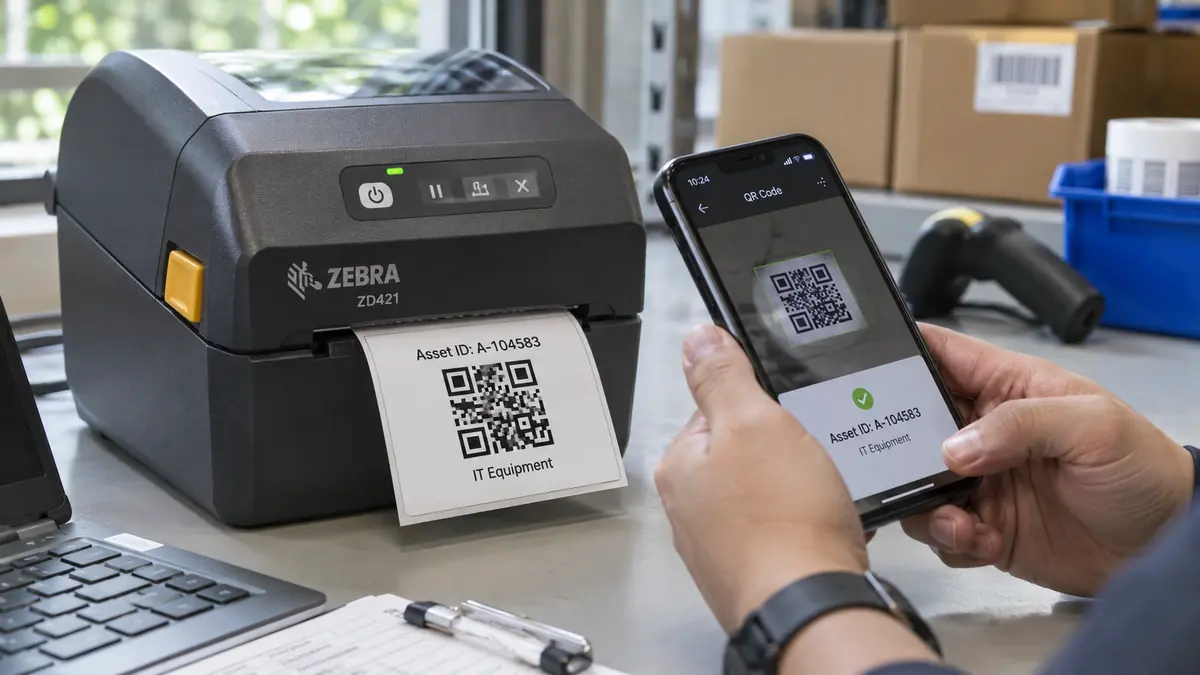
QR codes let a label carry a web address, a serial number or a block of structured data that any phone can read. ZPL creates them with the ^BQ command. The syntax is short, but one detail in the field data confuses almost everyone the first time. Here is everything you need.
The ^BQ syntax
^BQa,b,c,d,e
- a, orientation: always N. QR codes do not rotate with this parameter.
- b, model: 2 is the standard, enhanced model you should always use. Model 1 is legacy.
- c, magnification: 1 to 10, the width of each module in dots. The default depends on the printer resolution.
- d, error correction: H, Q, M or L. In practice the level written in the field data (below) is what counts.
- e, mask: 0 to 7. Leave it at the default and let the printer choose.
The field data prefix
This is the part that catches people out. The data in ^FD does not start with your content. It starts with two characters and a comma:
- Error correction level: H (about 30 percent recovery), Q (25), M (15) or L (7).
- Input mode: A for automatic, M for manual.
So ^FDQA,https://example.com^FS means "error correction Q, automatic mode, encode https://example.com". If you forget the prefix and write ^FDhttps://..., the printer reads the first two letters as settings and your QR code is missing them.
^XA
^PW609
^LL406
^FO20,20^GB569,366,4,B,1^FS
^FO40,40^BQN,2,6^FDMA,https://zplviewer.org/zpl-qr-code/^FS
^FO300,50^A0N,40,40^FDScan me^FS
^FO300,105^FB270,4,4,L^A0N,26,24^FDQR model 2, magnification 6, error correction M.^FS
^FO300,260^FH^A0N,24,24^FD_5EBQN,2,6^FS
^XZ
How big will the QR code be?
Size equals the number of modules times the magnification. A short URL usually fits in a version 3 symbol, which is 29 modules wide. At magnification 6 that is 174 dots, about 22 mm on a 203 dpi printer. More data or a higher error correction level means more modules. Our ZPL Viewer shows the exact size, so you can adjust the magnification until the code fits your label.
| Magnification | Module size at 203 dpi | Good for |
|---|---|---|
| 3 | 0.38 mm | Small labels scanned up close with good scanners |
| 4 to 5 | 0.5 to 0.63 mm | Asset tags and product labels |
| 6 to 8 | 0.75 to 1 mm | Shipping labels and codes read by phones |
| 10 | 1.25 mm | Signs and codes scanned from a distance |
Choosing error correction
Level M is a good default for labels. Choose Q or H for labels that get scuffed in warehouses or exposed outdoors, accepting a larger symbol. L packs the most data into the smallest space but has little tolerance for damage, so use it only for clean, protected labels.
Special characters and UTF-8
Automatic mode handles ordinary text and URLs. If your data includes characters outside basic ASCII, add ^CI28 before the field so the printer treats the data as UTF-8, and test the result with several phones. Data containing a caret must be escaped with ^FH; see special characters in ZPL.
Test before you print
The viewer encodes real QR codes, so you can scan the preview straight from your monitor with a phone camera. Check that the content is exactly what you expect, including https and any tracking parameters. Then print one label and scan it in the lighting where it will be used. If a QR code will not scan from a print, increase the magnification, raise the darkness slightly or slow the print speed.
QR Code or Data Matrix?
For very small labels on parts and medical products, Data Matrix (^BX) is often preferred because it is compact and industry standards specify it. QR codes are better when the public will scan with phones. Our viewer renders both; the barcode guide covers linear codes.
Preview this in the ZPL Viewer
Paste your code, pick the label size and density, then check every field before you print.
Frequently asked questions
Why is the first part of my QR code data missing?
The first two characters of ^FD are read as error correction and input mode. Start the data with a prefix such as QA, or MA, followed by your content.
What is the maximum magnification for ^BQ?
Magnification runs from 1 to 10. For larger codes you would need a different approach, such as a graphic, but 10 is enough for most labels.
Can I rotate a QR code in ZPL?
The orientation parameter of ^BQ only accepts N. QR codes scan at any angle, so rotation is rarely needed; if you must, rotate the whole label with your layout instead.
Does the ZPL Viewer render scannable QR codes?
Yes. It encodes QR codes to the standard, so the preview can be scanned from the screen to check the content.
Sources and further reading

Written by the ZPL Viewer Editorial Team
We build and maintain the ZPL Viewer rendering engine and write these guides from real testing of label code. Every example in this article was rendered in our viewer before publishing. Read more about how we work.