Key points
- Find the printer resolution on its configuration label or model sticker and set dpmm to match.
- Printers can store print width, label home, darkness and media settings that change the output.
- Fonts differ slightly between screen and printer because Zebra fonts are licensed.
- If preview and print disagree, compare one simple test label before changing code.
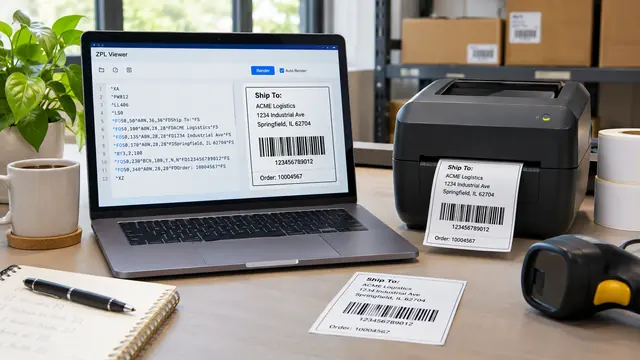
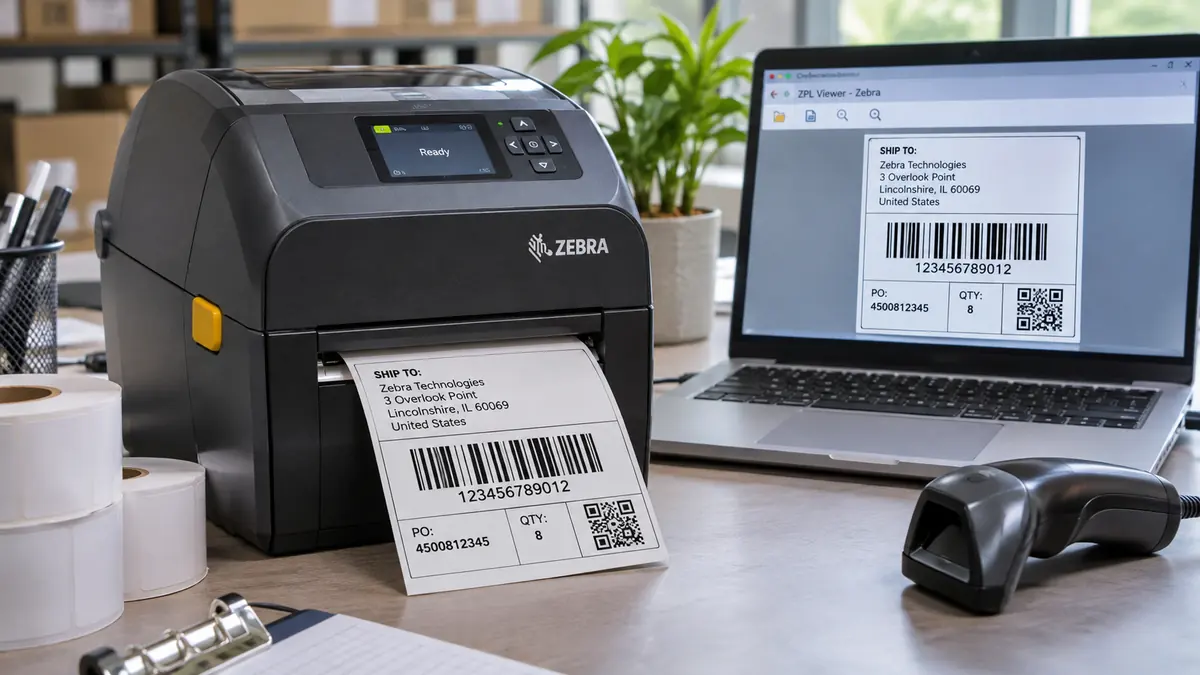
People often ask for a "Zebra ZPL viewer" as if one setting fits every Zebra printer. It does not. Zebra makes desktop, industrial and mobile printers at several resolutions, and each one can hold its own configuration. The trick to a trustworthy preview is to make the viewer behave like the specific printer you will use.
Step 1: Find your printer's resolution
Resolution is the single most important setting. Three quick ways to find it:
- Print a configuration label. On most desktop models, hold the feed button until the status light flashes once, then release. Industrial models have a menu option. The label lists resolution, often as dots per millimetre (for example 8 dots/mm).
- Read the model sticker. Many model numbers include a resolution option, and the sticker on the back often states 203 dpi or 300 dpi.
- Ask the system that created the label. Carrier and marketplace APIs usually let you choose a resolution when you request ZPL, and the request settings tell you what you received.
| Printer resolution | Viewer setting | Dots per inch of label |
|---|---|---|
| 152 dpi | 6 dpmm | 152 |
| 203 dpi | 8 dpmm | 203 |
| 300 dpi | 12 dpmm | 300 |
| 600 dpi | 24 dpmm | 600 |
Step 2: Know what the printer remembers
A ZPL file is not the whole story. Printers keep settings between jobs, and some are saved permanently with ^JUS. The ones that change the look of a label are:
- Print width (^PW): anything beyond it is not printed.
- Label home (^LH): shifts every field by a fixed offset.
- Label top (^LT) and label shift (^LS): move the whole image up, down or sideways.
- Print orientation (^PO): rotates the label 180 degrees.
- Darkness (~SD, ^MD) and speed (^PR): change how bold lines and barcodes look, without moving anything.
The configuration label shows the stored values. If your file does not set print width or label home itself, a previous job might have, which is a classic reason for "it worked yesterday". When in doubt, add the settings you rely on at the top of the format so every job is self contained.
Step 3: Expect small font differences
ZPL font 0 is a scalable font that Zebra licenses, and the bitmap fonts A to H are built into printer firmware. Viewers, including ours, use close substitutes. Heights and positions match, but a long line of text can come out a few dots wider or narrower. If text must fit a tight box, leave a little margin or use a field block (^FB) so it wraps instead of overflowing. Our ZPL fonts guide goes deeper.
^XA
^PW812
^LL609
^FO30,30^GB752,549,4^FS
^FO60,60^A0N,46,46^FDSame code, two printers^FS
^FO60,130^A0N,30,30^FD203 dpi: 812 dots across 4 in^FS
^FO60,175^A0N,30,30^FD300 dpi: 1200 dots across 4 in^FS
^FO60,240^BQN,2,5^FDQA,https://zplviewer.org/zpl-viewer-zebra/^FS
^BY2,3,100
^FO330,260^BCN,100,Y,N,N^FDDPMM-08^FS
^XZ
Load the label above, then switch the density between 8 and 12 dpmm. At 12 dpmm the content shrinks into the top left corner, which is exactly what happens when a 203 dpi file is sent to a 300 dpi printer.
Mobile and older Zebra printers
Zebra's mobile printers often default to CPCL, and many older desktop models used EPL. Recent Link-OS printers understand ZPL and can be switched between languages. If a printer prints your ZPL as text, check its command language setting. See ZPL vs EPL vs CPCL.
When preview and print disagree
Print one very simple label, for example a 100 dot square at ^FO50,50, and measure it. If the square is the right size but in the wrong place, look at label home, label top and calibration. If it is the wrong size, the density is wrong somewhere. If the square is perfect, the issue is in your label code, and the viewer will help you find it. More fixes are in our troubleshooting guide.
Preview this in the ZPL Viewer
Paste your code, pick the label size and density, then check every field before you print.
Frequently asked questions
What dpmm does a Zebra ZD420 or GK420 use?
It depends on the configuration you bought. These families come in 203 dpi (8 dpmm) and, for some models, 300 dpi (12 dpmm) versions. The configuration label shows which one you have.
Can I make one ZPL file work on 203 and 300 dpi printers?
Not automatically, because coordinates are in dots. You can generate separate files for each resolution, or scale coordinates in your software. Some printers offer scaling features, but results vary by model and firmware.
Why is the printed text slightly wider than the preview?
Printer fonts are licensed and viewers use close substitutes, so widths can differ a little. Leave a margin for long text or use ^FB to wrap it.
Does the viewer read settings stored in my printer?
No. A viewer only knows what is in the file. Add ^PW, ^LH and other critical settings to the label itself if you want predictable results everywhere.
Sources and further reading

Written by the ZPL Viewer Editorial Team
We build and maintain the ZPL Viewer rendering engine and write these guides from real testing of label code. Every example in this article was rendered in our viewer before publishing. Read more about how we work.