Key points
- ZPL must be sent as raw data, never printed as a document.
- On Windows use Zebra Setup Utilities or copy /b to a shared printer.
- On macOS and Linux use lp -o raw with a CUPS queue.
- Network printers accept raw ZPL on TCP port 9100 from scripts and apps.
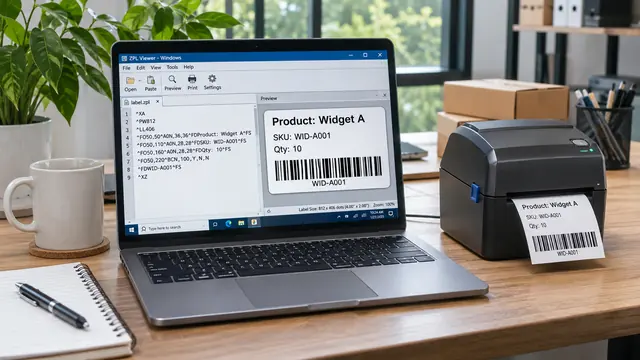
The golden rule of printing ZPL: send the bytes to the printer exactly as they are. If any software tries to "print" the file as a document, the printer receives an image of your code instead of the code itself. Preview the label first in the ZPL Viewer, then use one of the methods below.
Windows
Zebra Setup Utilities
Zebra's free utility can open a communication window with a connected printer and send a file or typed commands. It is the simplest route for testing and occasional jobs.
copy /b to a shared printer
Share the printer in its Windows properties, then copy the file in binary mode to the share:
copy /b C:\labels\label.zpl \\localhost\ZebraShareThis works over USB because Windows handles the connection. It is easy to call from batch files and scheduled tasks. Our Windows guide covers drivers and sharing in more detail.
macOS and Linux
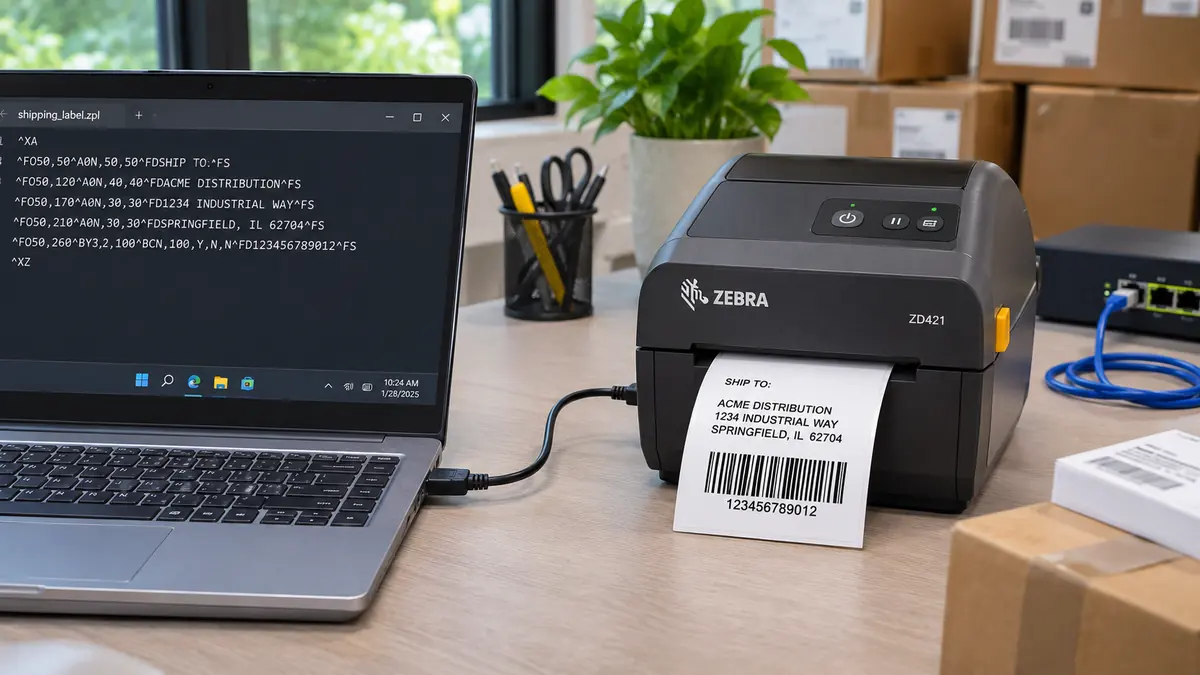
Add the printer in CUPS (System Settings on macOS, or the CUPS web interface on Linux). Then send the file with the raw option so CUPS does not filter it:
lp -d Zebra_ZD421 -o raw label.zplUse lpstat -p to list printer queue names.
Network printers: TCP port 9100
Most networked Zebra printers listen for raw jobs on TCP port 9100. Anything that can open a socket can print.
nc 192.168.1.50 9100 < label.zpl$client = New-Object System.Net.Sockets.TcpClient('192.168.1.50', 9100)
$stream = $client.GetStream()
$bytes = [System.IO.File]::ReadAllBytes('C:\labels\label.zpl')
$stream.Write($bytes, 0, $bytes.Length)
$stream.Close()
$client.Close()import socket
with open("label.zpl", "rb") as f:
data = f.read()
with socket.create_connection(("192.168.1.50", 9100), timeout=10) as s:
s.sendall(data)^XA
^PW812
^LL406
^CF0,32
^FO40,40^FDSent over TCP port 9100^FS
^FO40,90^FDPrinter: 192.168.1.50^FS
^FO40,140^GB730,3,3^FS
^BY3,3,140
^FO40,170^BCN,140,Y,N,N^FDNET-9100^FS
^XZSending many labels efficiently
Opening a new connection for every label is slow when you print hundreds. Combine labels into one file or one stream, each with its own ^XA and ^XZ, and send it in a single connection. If every label shares the same layout, store the format once with ^DF and send only the variable fields with ^XF and ^FN, which keeps each job small. Logos repeated on every label should be downloaded once with ~DG and recalled with ^XG; see images and logos in ZPL.
Checking the printer before a big run
Network printers can report their status. Sending ~HS over port 9100 asks the printer to reply with host status strings that include flags such as paper out, ribbon out, head open and pause. Reading that reply before a long batch lets your script stop early instead of queuing jobs on a printer that cannot print. The exact fields are documented in the Zebra programming guide.
From a web application
Browsers cannot open raw sockets, so web apps usually print ZPL through a small local service, a print server, or vendor tools that bridge the browser to local printers. Another option is to send ZPL from your server directly to network printers on port 9100, if your network allows it.
Tips for reliable printing
- Preview first. It is cheaper to find a mistake on screen than on a roll of labels.
- Send one label at a time while testing. Then batch many labels into one file for speed.
- Keep printers on fixed IP addresses so scripts do not break after a router restart.
- Secure the network. Port 9100 accepts jobs from anyone who can reach it; restrict it with firewall rules or VLANs.
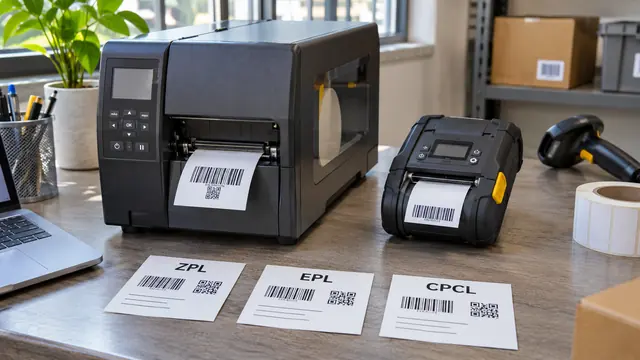
- Check the language. If the printer prints your code as text, see printer languages.
Preview this in the ZPL Viewer
Paste your code, pick the label size and density, then check every field before you print.
Frequently asked questions
What is port 9100?
It is the standard TCP port for raw printing, sometimes called JetDirect or AppSocket. Data sent to it goes straight to the printer’s command interpreter.
Can I print ZPL from a browser?
Not directly, because browsers cannot send raw data to printers. Use a local helper service, a print server or send ZPL from your server to the printer.
Why does copy /b say the network path was not found?
The printer share name is wrong or sharing is not enabled. Check the share name in the printer properties and try \\localhost\ShareName again.
Can I send several labels in one file?
Yes. Put each label between its own ^XA and ^XZ in one file. The printer prints them in order.
Sources and further reading

Written by the ZPL Viewer Editorial Team
We build and maintain the ZPL Viewer rendering engine and write these guides from real testing of label code. Every example in this article was rendered in our viewer before publishing. Read more about how we work.