Key points
- ^GFa,b,c,d,data stores a 1 bit bitmap: format, byte counts, bytes per row and the data.
- Data can be plain hex, Zebra compressed hex or Z64 (zlib plus Base64).
- ~DG stores a graphic in printer memory and ^XG prints it, which saves sending it every time.
- Prepare images at the final size in dots, in pure black and white.
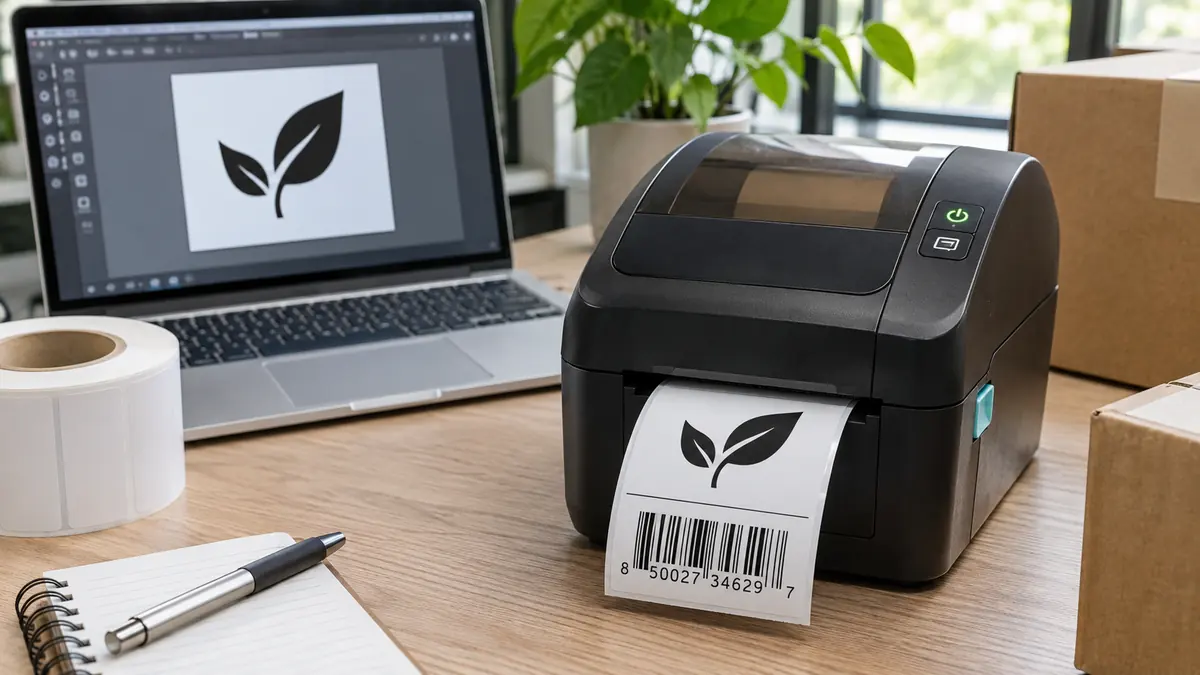
ZPL has no command for "insert a PNG". Instead, images travel as bitmaps where every bit is one printer dot. It sounds primitive, but it is exactly how a thermal printhead works, and once you know the format you can add logos, compliance marks and icons with confidence.
The ^GF command
^GFa,b,c,d,data
- a, format: A for ASCII hex (the most common), B for binary, C for compressed binary.
- b, binary byte count: total bytes of image data.
- c, graphic field count: total bytes again for most uses (equal to b for format A).
- d, bytes per row: image width in dots divided by 8, rounded up.
- data: the bitmap, row by row, top to bottom.
So a 48 x 48 dot logo has 6 bytes per row and 288 bytes in total: ^GFA,288,288,6,.... Each hex digit covers four dots, and a 1 bit prints black.
Three ways to write the data
Plain hex
Two hex characters per byte. Easy to read and generate, but large: a 4 x 6 inch full label bitmap at 203 dpi is about 124 KB of data, or roughly 250,000 characters.
Zebra compressed hex
ZPL adds a simple run length scheme to hex. Letters G to Y repeat the next hex digit 1 to 19 times, and g to z repeat it 20 to 400 times in steps of 20. A comma fills the rest of the row with zeros, an exclamation mark fills it with ones, and a colon repeats the previous row. The logo in the example below uses this scheme and needs only 360 characters instead of 576.
Z64 and B64
For larger images, :Z64: data is compressed with zlib, encoded as Base64 and followed by a CRC, as in ^GFA,8160,8160,34,:Z64:eJz...:a1b2. It is typically the smallest option. :B64: is the same without compression. Our ZPL Viewer decodes all of these.
^XA
^PW812
^LL406
^FO40,40^GFA,288,288,6,H03LFC,03NFC,0PF,1PF83PFC3FEL07FC7FN0FE7EN07E7CN03E:FCN03FF8N01F:F8L0381FF8L07C1FF8L0FE1FF8K01FE1F:F8K03FC1FF8K07F81FF8K0HF01FF8J01HF01FF80EH03FE01FF81FH03FC01FF83F807F801FF83FC0HFH01FF83FE1FEH01FF81HF3FEH01FF80JFCH01FF807IF8H01FF803IFI01FF801HFEI01FF8H0HFCI01FF8H07FCI01FF8H03F8I01FF8H01FJ01FF8I0EJ01FFCN03F7CN03E:7EN07E7FN0FE3FEL07FC3PFC1PF80PF,03NFC,H03LFC,^FS
^FO110,40^A0N,48,48^FDVerified Parts^FS
^FO110,95^FH^A0N,28,28^FDLogo printed from a _5EGF graphic field^FS
^FO40,150^GB730,3,3^FS
^FO40,175^GFA,288,288,6,H03LFC,03NFC,0PF,1PF83PFC3FEL07FC7FN0FE7EN07E7CN03E:FCN03FF8N01F:F8L0381FF8L07C1FF8L0FE1FF8K01FE1F:F8K03FC1FF8K07F81FF8K0HF01FF8J01HF01FF80EH03FE01FF81FH03FC01FF83F807F801FF83FC0HFH01FF83FE1FEH01FF81HF3FEH01FF80JFCH01FF807IF8H01FF803IFI01FF801HFEI01FF8H0HFCI01FF8H07FCI01FF8H03F8I01FF8H01FJ01FF8I0EJ01FFCN03F7CN03E:7EN07E7FN0FE3FEL07FC3PFC1PF80PF,03NFC,H03LFC,^FS
^FO100,175^GFA,288,288,6,H03LFC,03NFC,0PF,1PF83PFC3FEL07FC7FN0FE7EN07E7CN03E:FCN03FF8N01F:F8L0381FF8L07C1FF8L0FE1FF8K01FE1F:F8K03FC1FF8K07F81FF8K0HF01FF8J01HF01FF80EH03FE01FF81FH03FC01FF83F807F801FF83FC0HFH01FF83FE1FEH01FF81HF3FEH01FF80JFCH01FF807IF8H01FF803IFI01FF801HFEI01FF8H0HFCI01FF8H07FCI01FF8H03F8I01FF8H01FJ01FF8I0EJ01FFCN03F7CN03E:7EN07E7FN0FE3FEL07FC3PFC1PF80PF,03NFC,H03LFC,^FS
^FO160,175^GFA,288,288,6,H03LFC,03NFC,0PF,1PF83PFC3FEL07FC7FN0FE7EN07E7CN03E:FCN03FF8N01F:F8L0381FF8L07C1FF8L0FE1FF8K01FE1F:F8K03FC1FF8K07F81FF8K0HF01FF8J01HF01FF80EH03FE01FF81FH03FC01FF83F807F801FF83FC0HFH01FF83FE1FEH01FF81HF3FEH01FF80JFCH01FF807IF8H01FF803IFI01FF801HFEI01FF8H0HFCI01FF8H07FCI01FF8H03F8I01FF8H01FJ01FF8I0EJ01FFCN03F7CN03E:7EN07E7FN0FE3FEL07FC3PFC1PF80PF,03NFC,H03LFC,^FS
^BY2,3,100
^FO260,180^BCN,100,Y,N,N^FDVP-0042^FS
^XZ
Store once, print many: ~DG and ^XG
If the same logo appears on every label, send it to the printer once and refer to it by name:
~DGR:LOGO.GRF,288,6,(data)
^XA
^FO40,40^XGR:LOGO.GRF,1,1^FS
^XZ
~DG stores the bitmap in RAM (R:) or flash (E:) under a name with the .GRF extension. ^XG prints it, with optional x and y magnification. This reduces data per label and speeds up printing. The viewer supports the pattern when the download and the label are in the same file.
Preparing an image
- Size it in dots. A 15 mm logo at 203 dpi is 120 dots wide. Resize before converting so the printer does not have to.
- Make it black and white. Thermal printers print no grey. Use a threshold for logos and line art, dithering for photos.
- Simplify. Thin lines under 2 dots and small text inside logos often disappear. Thicken them.
- Convert and test. Use a converter library, then preview. Libraries such as zebrafy (Python) can produce ^GF data; see our converter guide.
Common problems
- Image looks sheared or striped: the bytes per row value is wrong.
- Image is inverted: the converter treated 1 as white. Invert the bitmap.
- Bottom of the image is missing: the byte count is smaller than the data.
- Printing is slow: very large graphics take time to transfer and process. Store them with ~DG or use Z64.
Preview this in the ZPL Viewer
Paste your code, pick the label size and density, then check every field before you print.
Frequently asked questions
Can I print a PNG or JPG directly on a Zebra printer?
Some newer printers accept certain image formats through special commands, but the portable method is to convert the image to a ^GF graphic field first.
How do I calculate bytes per row for ^GF?
Divide the image width in dots by 8 and round up. A 100 dot wide image needs 13 bytes per row, with the last few bits as padding.
What does :Z64: mean in ZPL?
It marks graphic data compressed with zlib and encoded in Base64, followed by a CRC. It is the most compact way to embed images.
Why does my logo print as a black box?
The data is probably inverted or the converter used a threshold that turned every pixel black. Check the preview and adjust the threshold.
Sources and further reading

Written by the ZPL Viewer Editorial Team
We build and maintain the ZPL Viewer rendering engine and write these guides from real testing of label code. Every example in this article was rendered in our viewer before publishing. Read more about how we work.