Key points
- Put one field per line and label sections with ^FX comments: printers ignore both, people love them.
- Syntax colours make data, commands and graphics easy to tell apart at a glance.
- Click an element in the preview to jump to its code instead of searching by coordinates.
- Most bugs are typos: ^F0 instead of ^FO, a missing ^FS or a comma in the wrong place.
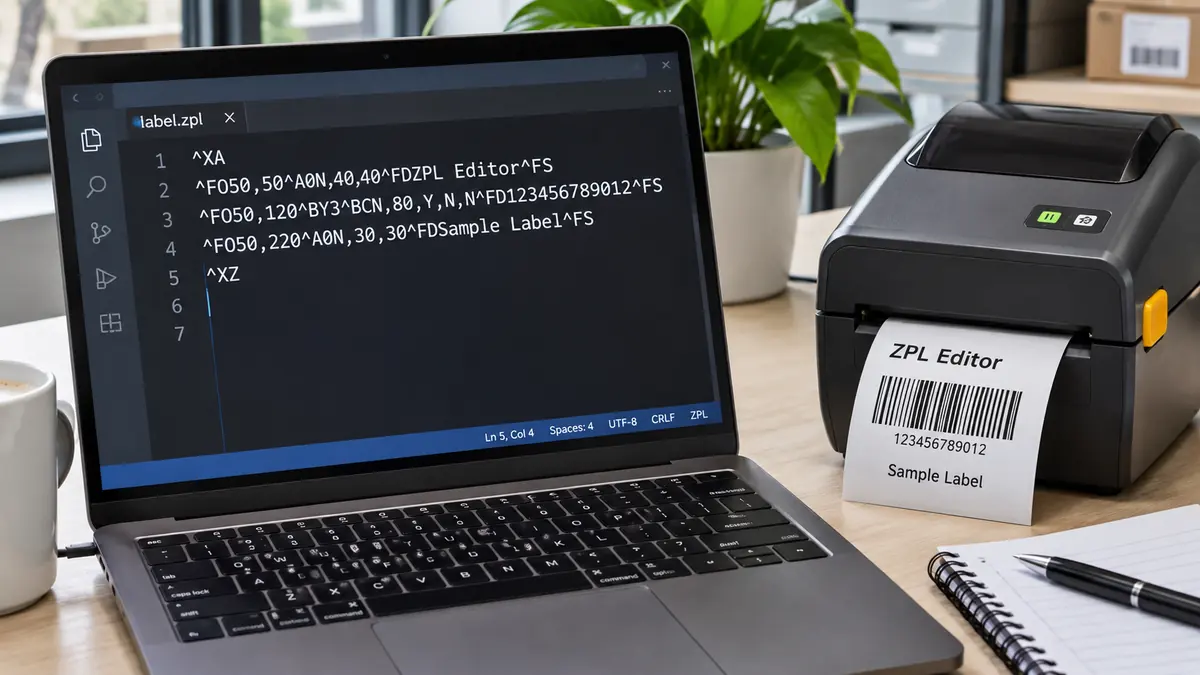
Most ZPL is written by software, so it often arrives as one enormous line. When you need to change it by hand, a good ZPL editor and a few habits make the difference between a five minute fix and an afternoon of trial prints. This guide covers both.
Structure code so people can read it
A printer does not care about line breaks or comments, which means you can add as many as you like. Three conventions help:
- One field per line. Start each line with its position command, such as
^FO, and end it with^FS. - Section comments.
^FXstarts a comment that runs to the next caret. Use it to label blocks like header, address and barcode. - Defaults at the top. Put
^PW,^LL,^CFand^BYnear^XAso the rest of the file inherits them.
^XA
^FX ---- Header ----
^CF0,44
^FO40,40^FDKitchen Supply Co.^FS
^FX ---- Item ----
^CF0,30
^FO40,110^FDItem: Chef knife 20 cm^FS
^FO40,150^FDSKU: KN-2041^FS
^FX ---- Barcode ----
^BY3,3,110
^FO40,200^BCN,110,Y,N,N^FDKN2041^FS
^XZ
Format and minify
Our ZPL Viewer editor has two buttons for this. Format rebuilds the code with each field group and each label setting on its own line, which turns a one line API response into something you can scan. Minify removes the line breaks again, which is handy when a system expects single line ZPL or when you embed ZPL in JSON. Neither changes field data, so your text and barcodes stay exactly the same.
Let syntax colours do the work
The editor colours ZPL by role: ^XA and ^XZ in orange, ordinary commands in blue, barcode commands in purple, graphics in green, field data in yellow and comments in grey. With colours, two common mistakes stand out immediately: field data that runs on into the next command because ^FS is missing, and long hex graphics that hide the fields around them.
Navigate from the label to the code
Hover over any element in the preview to see its type and coordinates, then click it. The editor selects the exact range of code, from the position command to the field separator, that drew it. In the Elements tab you get the same information as a list, which is useful for finding fields that are hidden underneath others.
The typos that cause most bugs
| Typo | Symptom | Fix |
|---|---|---|
^F0 (zero) instead of ^FO | Field appears at the previous position or not at all | Use the letter O; the inspector flags ^F0 as unknown |
Missing ^FS | Two fields merge, or the second one loses its font | Close every field; colours show data running on |
^A0,40,40 without orientation | Works, but easy to misread | Write ^A0N,40,40 for clarity |
| Caret inside data | Text cut off where the caret appears | Use ^FH and _5E; see special characters |
Comma missing in ^BY | Barcode too tall, short or thin | ^BYw,r,h always has width first |
A fast edit and test loop
- Format the code and add a few
^FXcomments while you read it. - Change one thing at a time and watch the live preview.
- Check the Warnings tab after every significant change.
- Download the ZPL file when you are done, and keep the original for comparison.
For larger layout work, consider whether a visual designer suits you better. We compare the approaches in ZPL designer options.
Other editors that work well
Any plain text editor can edit ZPL. Visual Studio Code and Notepad++ are good choices because they handle huge files and offer search and replace with regular expressions, which helps when you need to change every ^FO y value in a block. Avoid word processors, which can replace straight quotes and add invisible characters. Pair your editor with a viewer so you always see the result of a change.
Preview this in the ZPL Viewer
Paste your code, pick the label size and density, then check every field before you print.
Frequently asked questions
Do ^FX comments or line breaks affect printing?
No. Printers ignore line breaks between commands and treat ^FX as a comment, so you can format code freely. Avoid line breaks inside ^FD data, because some systems treat them inconsistently.
Can I edit ZPL in Notepad?
Yes. ZPL is plain text. Save with a .zpl or .txt extension and make sure the editor does not add formatting. Pair it with a viewer to see the result.
Why does my edited text show up in the wrong font?
A missing ^FS often makes a field inherit the wrong settings, or ^A was placed after ^FD. Put ^A before ^FD and close every field.
How do I find which code draws a particular barcode?
Click the barcode in the viewer preview. The editor selects the commands that produced it.
Sources and further reading

Written by the ZPL Viewer Editorial Team
We build and maintain the ZPL Viewer rendering engine and write these guides from real testing of label code. Every example in this article was rendered in our viewer before publishing. Read more about how we work.