Key points
- Visual designers are fastest for one off layouts and people who do not code.
- Hand written or generated ZPL wins for templates filled by software and version control.
- Plan on a dot grid: keep a safe margin of about 3 mm and align fields to shared x values.
- Whatever tool you use, preview the exported ZPL before it goes into production.
A "ZPL designer" can mean a drag and drop application, an online template builder or a developer writing code with a viewer open beside it. Each approach produces the same thing in the end: ZPL commands that tell a printer where to put text, lines and barcodes. The best choice depends on who maintains the label and how often its data changes.
Three ways to design a ZPL label
Visual designer applications
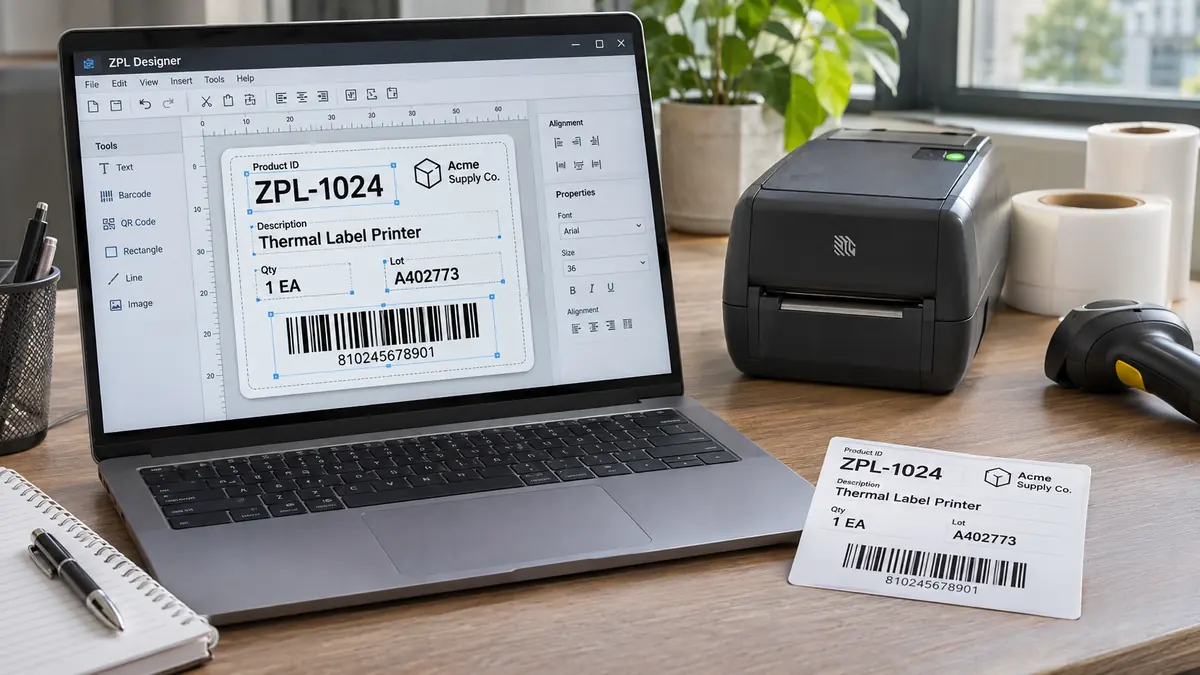
Desktop tools such as ZebraDesigner let you place objects on a canvas, choose barcode types from menus and print or export the result. Behind the scenes they generate ZPL. They are ideal for marketing labels, one off product labels and teams without developers. The trade off: the generated code can be verbose, and hooking it up to live data often needs extra licensing or a database connection feature.
Templates with variables
Many systems store a ZPL template with placeholders, then replace them with order data at print time. ZPL even has a native version of this: ^DF stores a format in the printer with numbered fields (^FN), and ^XF recalls it with new data. Our commands cheat sheet shows the syntax.
Hand written or generated code
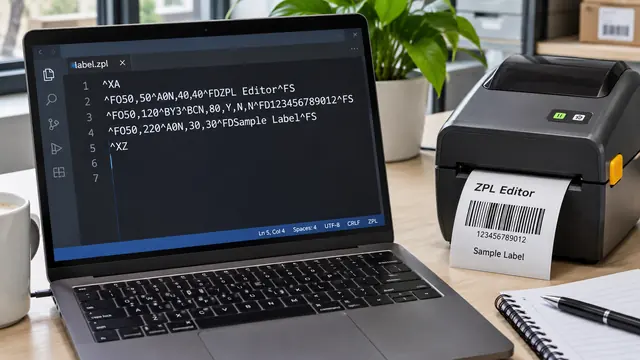
Writing ZPL directly, or generating it from your own software, gives complete control and clean diffs in version control. It is the norm for shipping integrations, warehouse systems and anything printed at volume. A live viewer removes most of the pain, because you see each change immediately.
Which approach fits you?
| Need | Best fit |
|---|---|
| A handful of static labels, no developers | Visual designer |
| Labels filled from an ERP or WMS | Template with variables or generated ZPL |
| Strict layout from a carrier or retailer spec | Hand written ZPL checked in a viewer |
| Many printer resolutions | Generated ZPL that scales coordinates per printer |
Layout rules that work in any designer
- Work in dots. At 203 dpi a 4 inch label is 812 dots wide. Write that number down before you start.
- Keep a safe margin. Leave around 20 to 30 dots (roughly 3 mm at 203 dpi) on every edge. Media drifts, and edges print less reliably.
- Use a grid. Align fields to a few shared x positions, such as 40 and 470 in the example below. Labels look more professional and are easier to edit.
- Give barcodes quiet zones. Leave clear space on both sides of linear barcodes, at least ten times the narrow bar width.
- Use contrast for hierarchy. A reversed header (white text on a black box) draws the eye without needing a larger font.
^XA
^PW812
^LL812
^FO0,0^GB812,120,120^FS
^FO40,32^FR^A0N,64,60^FDFRESH PRODUCE^FS
^FO40,160^A0N,54,50^FDHoneycrisp Apples^FS
^FO40,230^A0N,32,30^FDOrigin: Washington, USA^FS
^FO40,280^GB730,3,3^FS
^FO40,310^A0N,30,30^FDNet weight^FS
^FO40,350^A0N,80,72^FD3 lb^FS
^FO470,300^GB300,170,4,B,3^FS
^FO500,330^A0N,34,30^FDPRICE^FS
^FO500,375^A0N,76,66^FD$4.99^FS
^BY3,3,150
^FO120,540^BUN,150,Y,N,Y^FD03338390011^FS
^XZ
The header uses a filled ^GB box with ^FR text on top, so the letters print white. Learn more in drawing boxes and lines in ZPL.
Review exported ZPL before production
Designers sometimes add commands you did not expect: saved darkness settings, media type changes or graphics downloaded to printer memory. Paste exported files into the ZPL Viewer and read the inspector. Remove printer configuration commands you do not want in every job, and confirm the label size and density match the printers on your floor.
Preview this in the ZPL Viewer
Paste your code, pick the label size and density, then check every field before you print.
Frequently asked questions
Is there a free ZPL designer?
Zebra offers a free edition of ZebraDesigner for basic label design, and there are free online builders. You can also design for free by writing ZPL with a live viewer.
Can I import ZPL into ZebraDesigner?
ZebraDesigner is built to create labels rather than edit arbitrary ZPL, so importing existing code is limited. Many teams keep the ZPL as the source of truth and edit it with a viewer instead.
What is the best font size for a shipping label?
For addresses on 203 dpi printers, ^A0 heights of 30 to 45 dots are common. Titles and routing codes can be much larger. Check readability at arm’s length on a printed sample.
How do I keep a design consistent across printers?
Fix the density, include ^PW and ^LL in the code and avoid relying on settings stored in the printer.
Sources and further reading

Written by the ZPL Viewer Editorial Team
We build and maintain the ZPL Viewer rendering engine and write these guides from real testing of label code. Every example in this article was rendered in our viewer before publishing. Read more about how we work.