Key points
- A good ZPL to PNG export has one pixel per printer dot.
- PNG is lossless, so barcodes stay sharp; avoid JPG for labels.
- Use PNG for tickets, documentation and web previews; use PDF for printing and multi label files.
- Scaling a PNG down for display is fine; scaling it for printing is not.
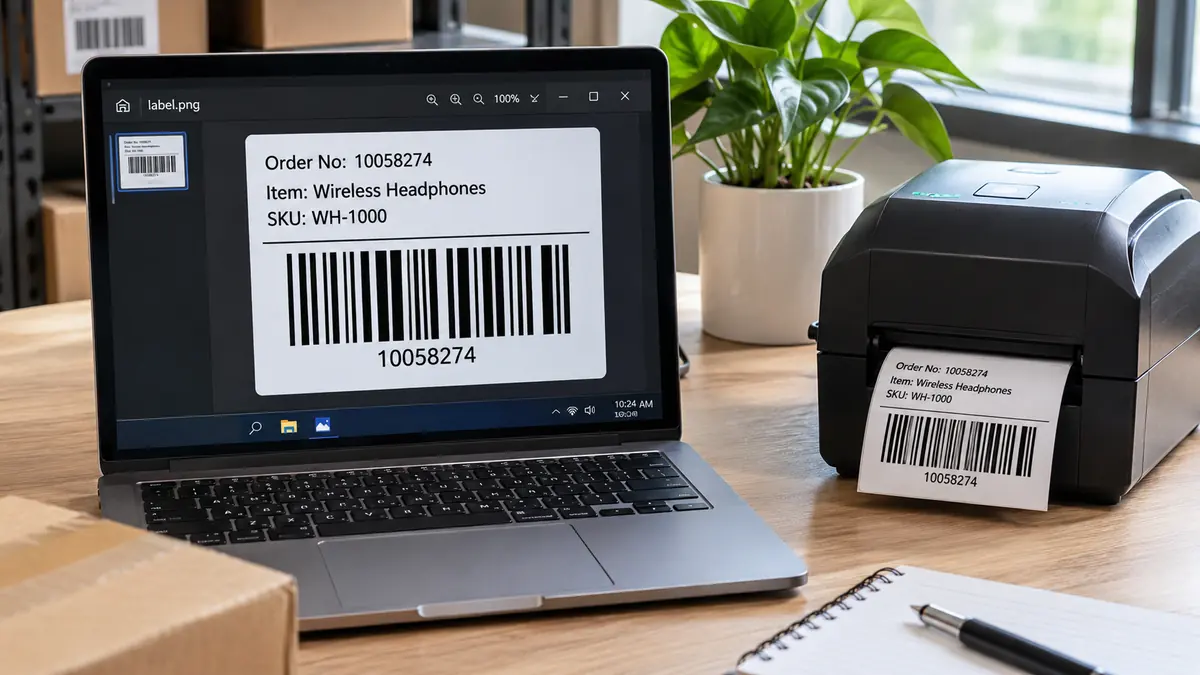
Sometimes you just need a picture of a label: for a bug report, a how to document, a product page or a quick chat message. Exporting ZPL to PNG gives you that picture. Done properly, it is an exact, dot for dot record of what the printer will produce.
How to export a PNG
- Open the ZPL Viewer and paste or open your ZPL.
- Set the density and label size to match the printer.
- If the file has several labels, use the arrows to choose one.
- Click PNG to download it, or Copy image to paste it straight into an email, chat or document.
^XA
^PW609
^LL406
^FO20,20^GB569,366,4,B,1^FS
^FO45,45^A0N,40,40^FDSave as PNG^FS
^FO45,100^A0N,26,26^FD3 x 2 in at 203 dpi^FS
^FO45,135^A0N,26,26^FD= 609 x 406 pixels^FS
^FO400,45^BXN,7,200^FDZPL-TO-PNG^FS
^BY2,3,110
^FO45,200^BCN,110,Y,N,N^FDPNG-609X406^FS
^XZ
Pixels equal dots
The exported image uses one pixel for each printer dot. A 3 x 2 inch label at 203 dpi is 609 x 406 pixels; a 4 x 6 inch label is 812 x 1218. At 300 dpi the same labels are 900 x 600 and 1200 x 1800. Because nothing is resampled, the narrow bars in a barcode keep their exact widths. If you rotate the view before exporting, the PNG is rotated too.
Why PNG and not JPG?
PNG is lossless. JPG compression blurs the sharp edges between black and white, adding grey fringes around bars and text. For photographs that is invisible; for barcodes it can push a code below scanning tolerance. Labels are pure black and white, so PNG files are also small, usually only a few kilobytes.
Good uses for a label PNG
- Support tickets: attach the PNG with the ZPL so others can see the problem instantly.
- Documentation and training: show what each label type looks like.
- Customer approval: send a proof of a new product label.
- Automated tests: compare rendered images between template versions to catch unwanted changes.
For printing on office printers or archiving whole batches, a PDF is better because it carries the physical size. See ZPL to PDF.
Displaying the PNG at the right size
A 203 dpi PNG viewed at 100 percent on a typical monitor looks about twice as big as the real label, because screens have fewer pixels per inch. That is fine for viewing. If you place it in a document, set its width to the physical label size, for example 4 inches, and the document will scale it correctly. Avoid enlarging it with smoothing, which blurs edges.
Automating ZPL to PNG
For bulk conversion inside your own systems, use a rendering library or service rather than a browser. Our overview of open source ZPL projects lists options in several programming languages. Spot check automated output against the viewer and a real print.
Preview this in the ZPL Viewer
Paste your code, pick the label size and density, then check every field before you print.
Frequently asked questions
What resolution is the exported PNG?
One pixel per printer dot. A 4 x 6 inch label at 203 dpi exports at 812 x 1218 pixels.
Can I export every label in a file as PNG?
The PNG button exports the label you are viewing. Move through the labels with the arrows to export each one, or use PDF to get all labels in one file.
Can I scan a barcode from the PNG?
Yes. Barcodes are encoded properly, so a phone or scanner can usually read them from the screen or the image.
Why does my PNG look blurry in a document?
The document is scaling it with smoothing. Insert it at a size that is a whole fraction of its pixel size, or use PDF for print documents.
Sources and further reading

Written by the ZPL Viewer Editorial Team
We build and maintain the ZPL Viewer rendering engine and write these guides from real testing of label code. Every example in this article was rendered in our viewer before publishing. Read more about how we work.