Key points
- Most people only need a browser based viewer: nothing to install and nothing to update.
- Download a desktop tool when you must capture jobs sent to a virtual printer or work fully offline.
- Developers can embed rendering with an API or an open source library instead of a separate app.
- Only install software from sources you trust, and check what it sends over the network.
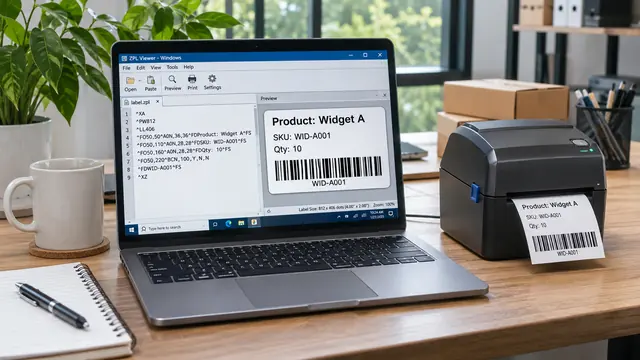
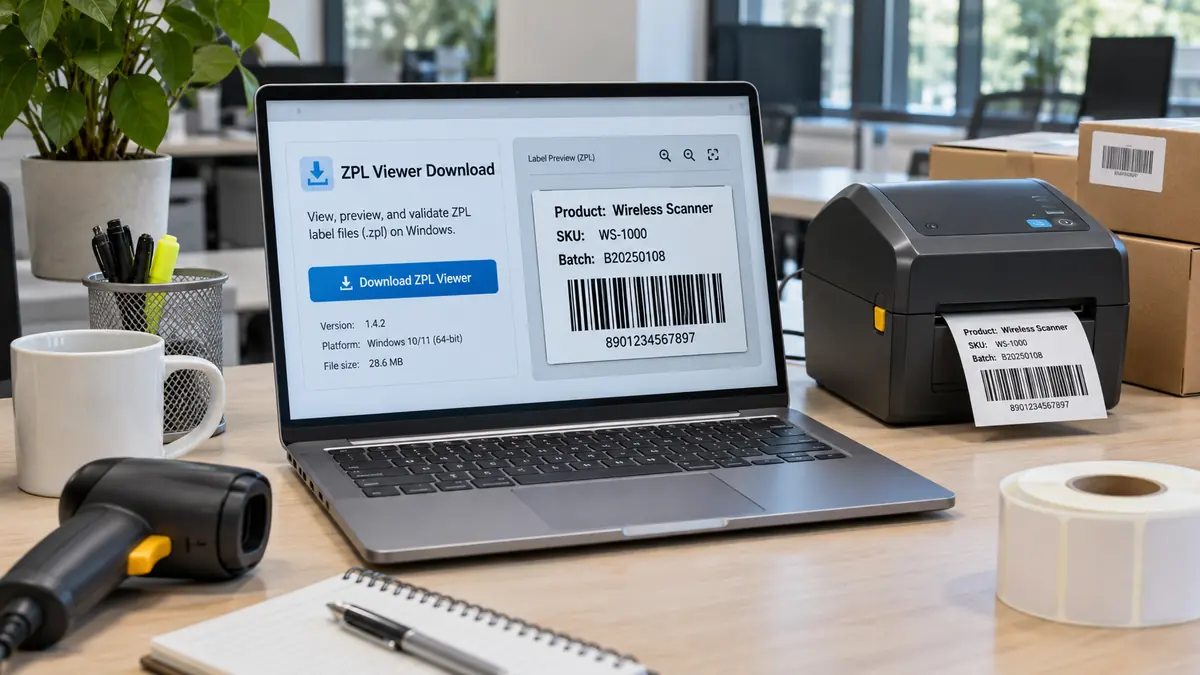
Search for "ZPL viewer download" and you will find installers, portable executables and zip files of varying age and origin. Before you download anything, it helps to know what problem you are solving. There are four broad ways to view ZPL, and each suits a different job.
The four ways to view ZPL
| Option | Best for | Trade offs |
|---|---|---|
| Browser based viewer | Checking files, editing code, quick proofs, any operating system | Needs a browser; cannot intercept print jobs from other apps |
| Desktop viewer app | Offline work, opening files from the file manager | Must be installed and updated; quality varies widely |
| Printer emulator | Seeing what an application sends to a "printer" without a real one | More setup, usually listens on a network port such as 9100 |
| API or library | Rendering inside your own software or pipeline | Requires development work; online APIs have usage limits |
Why most people do not need a download
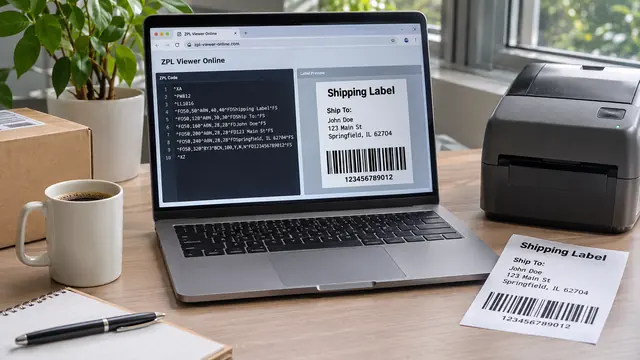
A modern browser viewer covers the common jobs: open a file, see the label, fix the code and export PNG or PDF. It works on Windows, macOS, Linux and ChromeOS without admin rights, which matters on company laptops. Our ZPL Viewer also runs entirely on your device, so there is no difference in privacy compared with an installed app. And because it loads fresh each time, you always have the latest rendering engine.
If you only need offline access occasionally, you can save the page in your browser, or simply keep a tab open: once loaded, our viewer does not need a connection to render.
When a desktop download makes sense
There are good reasons to install something:
- Capturing print jobs. If an application prints straight to a Zebra queue and you cannot get the ZPL any other way, a printer emulator that pretends to be a network printer will catch the data. Some open source emulators listen on port 9100 and display incoming labels. Our guide to sending ZPL to a printer explains how port 9100 printing works.
- Strict offline environments. Some production floors and secure networks have no internet access at all.
- Designing labels visually. That is a design tool rather than a viewer. ZebraDesigner, Zebra's label design software, lets you lay out labels and print them to a file, which produces a .prn containing ZPL. See ZPL designer options.
What Zebra's own utilities do and do not do
Zebra Setup Utilities is a free Windows program for configuring printers and sending files to them. It is excellent for getting ZPL onto a printer, but it is not a previewer: it sends the file and the printer prints it. ZebraDesigner creates labels and can export them as printer files, but it does not import arbitrary ZPL for editing. Pairing Zebra's utilities for printing with a viewer for previewing is a sensible combination.
Options for developers
If you generate ZPL in code, you may prefer rendering inside your own tests. Hosted APIs accept ZPL and return PNG or PDF, but they send label data to a third party and usually have rate limits. Open source libraries render locally; we review the landscape in ZPL viewer projects on GitHub. Either way, compare a few outputs with a real printer before trusting a new renderer for production.
Downloading safely
Label files often carry customer addresses, so treat any tool that handles them with care:
- Prefer publishers with a clear identity, a support contact and a change history.
- Check whether the tool renders locally or sends your ZPL to an online service, which some desktop "viewers" quietly do.
- Scan installers with your security software and avoid tools that ask for unnecessary permissions.
- Keep the software updated, since rendering bugs and security fixes both arrive through updates.
^XA
^PW609
^LL406
^FO20,20^GB569,366,4,B,1^FS
^FO45,45^A0N,40,40^FDDesktop or browser?^FS
^FO45,100^FB520,3,6,L^A0N,28,26^FDA browser viewer runs anywhere. A desktop tool can capture print jobs sent to a virtual printer.^FS
^BY2,3,90
^FO45,250^BCN,90,Y,N,N^FDZPL-VIEW-01^FS
^XZ
Use a known file like the one above to compare viewers. A good tool renders the wrapped text inside the box and a Code 128 barcode that scans as ZPL-VIEW-01.
Preview this in the ZPL Viewer
Paste your code, pick the label size and density, then check every field before you print.
Frequently asked questions
Is there an official Zebra ZPL viewer download?
Zebra provides free tools for designing labels and sending files to printers, such as ZebraDesigner and Zebra Setup Utilities, but these are not general purpose ZPL previewers. Most people use a browser based viewer alongside them.
Can I use a ZPL viewer offline?
Yes. Our viewer renders on your device, so once the page has loaded it keeps working without a connection. For fully offline sites, a desktop tool or a saved copy of a browser tool is an option.
Is a downloaded viewer more accurate than an online one?
Not necessarily. Accuracy depends on the rendering engine, not on whether it is installed. Test any tool with known labels and a real printer before relying on it.
What is a ZPL printer emulator?
It is software that pretends to be a printer, usually by listening on network port 9100, and displays the labels it receives. It is useful when an application only prints and never exports ZPL.
Sources and further reading

Written by the ZPL Viewer Editorial Team
We build and maintain the ZPL Viewer rendering engine and write these guides from real testing of label code. Every example in this article was rendered in our viewer before publishing. Read more about how we work.